Texas qualifying event fee payment is now available in the FIRST Storefront for teams looking to participate in:
- FIRST® LEGO® League Challenge Founders Edition
- FIRST LEGO League Future Edition
- FIRST® Tech Challenge teams
We apologize for the delay and appreciate your patience. We know schools, districts, and team sponsors need time to arrange funding and process payments. The payment expectations shared in our earlier update continue to apply.
This guide provides:
- Regional qualifying event fees and payment expectations.
- A checklist to prepare for checkout.
- Step-by-step Storefront instructions with screenshots.
- Support links for grants, purchase orders, financial guarantors, and invoices.
- Next steps for event placement, Explore fees, and advancing event fees.
Where This Payment Fits
Getting ready for a Texas event involves three parts. This guide focuses on paying your Texas qualifying event fee.
| Registration part | What to complete | Guidance |
|---|---|---|
| 1. FIRST HQ season registration | Complete annual team registration, coach requirements, student enrollment, and consent forms. | HQ registration and event readiness checklist |
| 2. Texas qualifying event fee | Purchase the applicable fee for your program and region. | Follow the checkout steps below. |
| 3. Event placement | Complete regional selection, preferencing, or assignment and confirm your placement. | FLL event schedules and selection FTC event preferencing |
Paying the fee does not automatically reserve a place at a specific event. Continue following your region’s placement instructions. All HQ registration requirements must be complete before your first event.
Check Your Texas Qualifying Event Fee
Texas fees are separate from HQ season registration. Regional partnerships and competition structures affect pricing, so the amount shown for your team may differ from the example screenshots.
| Program and region | Fee per team | What it covers / how to pay |
|---|---|---|
| FLL Challenge Founders Edition Central, North, and South | $175 | One qualifier; pay in the FIRST Storefront. |
| FLL Challenge Founders Edition East | $125 | One qualifier; pay in the FIRST Storefront. |
| FLL Challenge Founders Edition Panhandle | $45 | One qualifier; pay in the FIRST Storefront. |
| FLL Challenge Founders Edition West / El Paso | Local process | Follow UTEP’s local registration and payment instructions. |
| FLL Future Edition Texas event | $175 | One Future Edition qualifier; pay in the FIRST Storefront and follow event placement instructions. |
| FTC Central, North, and South | $325 | Either two qualifiers or a league season, based on regional options; pay in the FIRST Storefront. |
| FTC West & Panhandle | $90 | League participation supported by Texas Tech University; pay in the FIRST Storefront. |
| FTC East / Houston | Separate regional fee | Pay through San Jacinto College’s invoice process. Its regional fee includes league participation and the Regional Championship if the team advances. |
Review FLL Pricing & Registration or FTC Pricing & Registration for complete pricing and regional guidance. If the fee shown in your team’s Storefront does not match the published guidance, email texasinfo@firstinspires.org before completing the purchase.
Before You Begin
| Check | What to prepare | Instructions |
|---|---|---|
| ☐ Season registration | Your team’s current-season HQ registration must already be purchased, or you must add it to the cart with the qualifying event fee. | HQ registration checklist |
| ☐ Purchasing approval | Confirm your school or organization’s funding and vendor requirements. Payments through this Storefront are to FIRST. | Create a quote |
| ☐ Financial guarantor | If using a purchase order or sales tax exemption, arrange the required financial guarantor setup and approval before checkout. | Financial guarantor guidance |
| ☐ Grant funds | If you intend to use an awarded grant for the Qualifying Event Fee, confirm the funds appear in your team’s account and review eligibility and expiration before checkout. | View available grant funds |
| ☐ Regional fee | Check your program, edition, region, and published fee before purchasing. | FLL pricing FTC pricing |
How to Purchase Your Texas Qualifying Event Fee
The screenshots below show an FTC team. Use your own team account and the qualifying event fee offered for your program and edition.
Step 1: Sign In and Open the Storefront
Go to firstinspires.org and log in. In your FIRST Dashboard, select your team and choose Go to the FIRST Storefront.
For FIRST’s walkthrough of selecting your team, shopping, and paying with a PO, see How do I upload a purchase order?. Additional purchasing articles are linked below.
Step 2: Select the Correct Team Account
Confirm that the team number shown at the top of the Storefront is the team you want to register. If needed, use Switch Accounts to select the correct individual team. Check the account again when purchasing for another team.
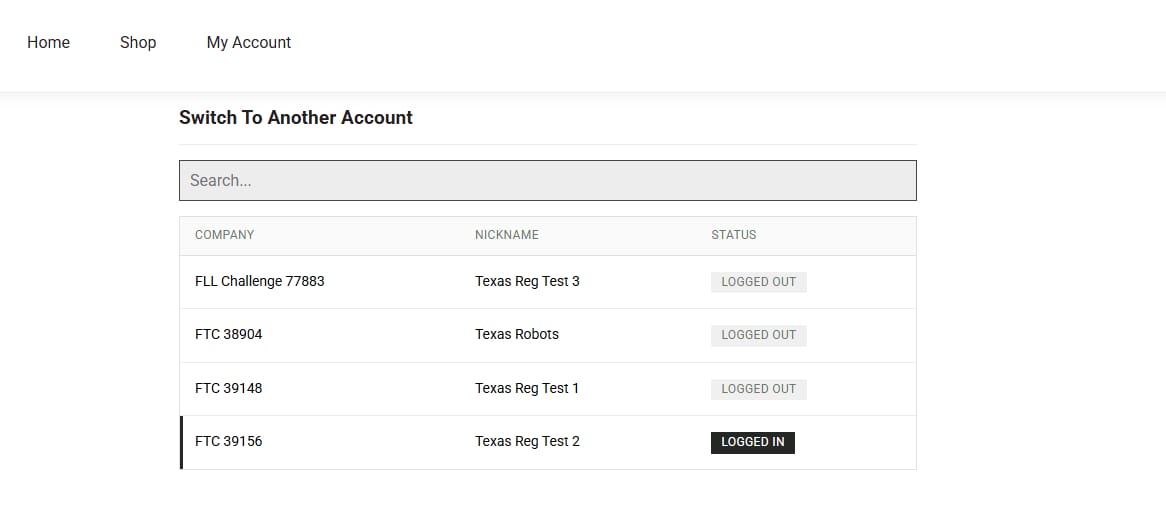
Select the individual team account before shopping. The team shown is an example.
Step 3: Open Shop and Find the Qualifying Event Fee
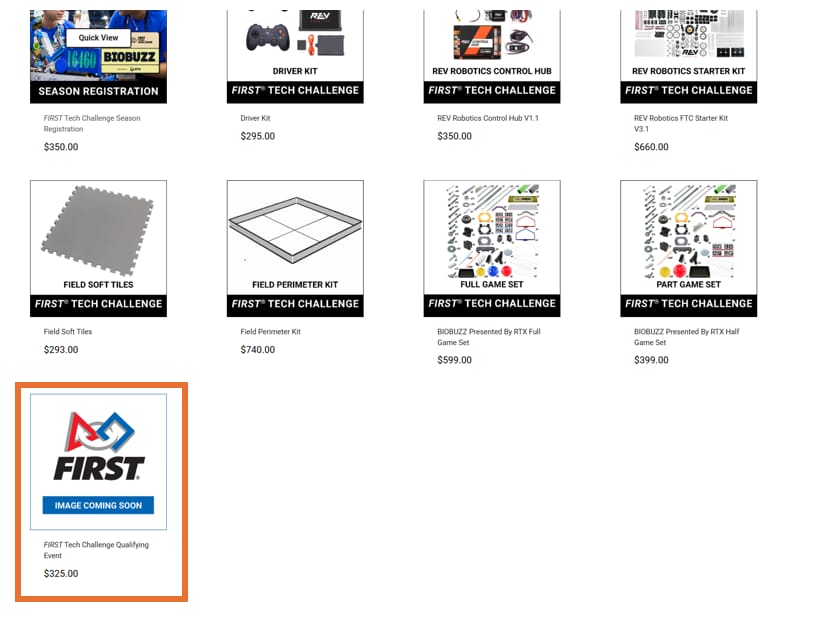
Select Shop. Scroll to the bottom of the product list to find your Texas qualifying event fee. Open the qualifying event product to review its details.
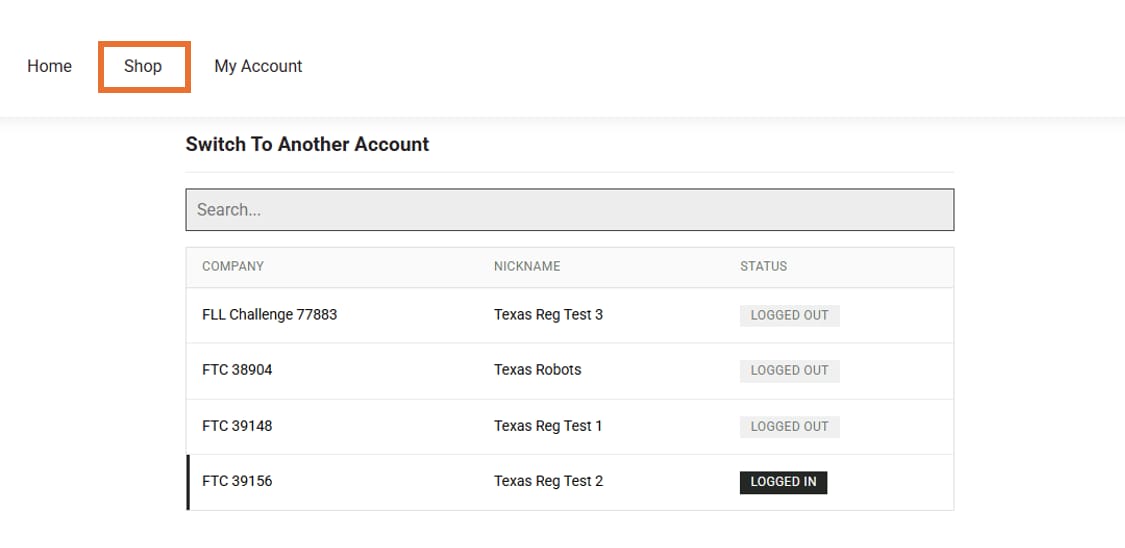
The qualifying event fee appears below the other Storefront products. Your program’s product list may differ.
Step 4: Review the Fee and Add It to Your Cart
Confirm the team, program, and price. Add one qualifying event fee for the selected team to the cart.
If you see A required item is needed first, your HQ season registration must already have been purchased for this season or be in the cart before you can add the fee. Use Add Required Item to add season registration if needed, then add the qualifying event fee.
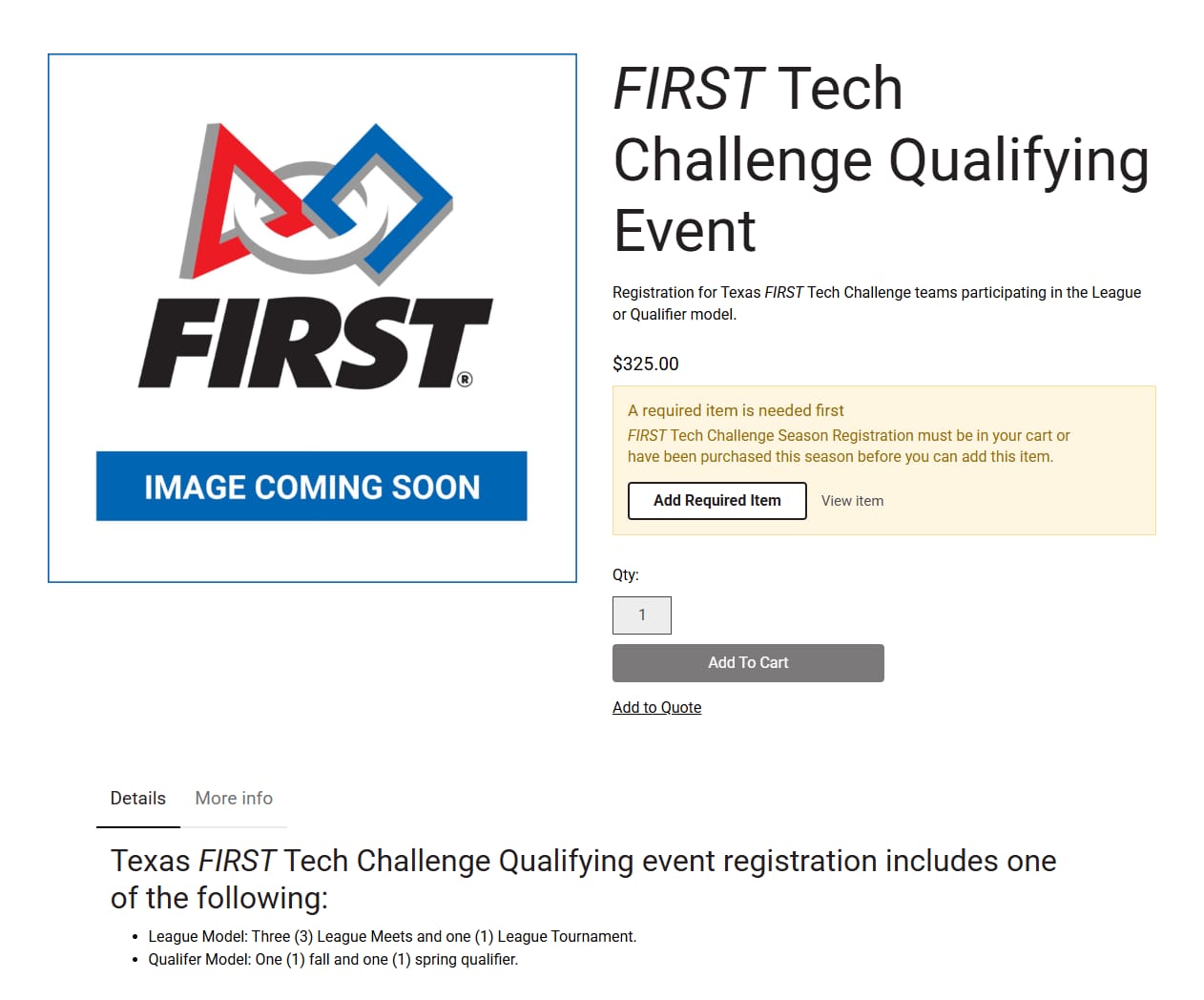
This FTC example shows the $325 fee and the season registration prerequisite. Your fee depends on your program and region.
Step 5: Review Your Cart and Complete Checkout
Check the team account, items, quantities, and total. Follow the Storefront checkout prompts for your payment method. If you need grant funds, review and apply eligible funds during checkout. If paying by PO, follow FIRST’s submission instructions.
After checkout, keep your order confirmation and obtain any invoice or receipt your purchasing office needs. Use How can I print a receipt/invoice from the FIRST Storefront? for instructions. Follow up on any remaining payment or approval requirements.
Grants, Purchase Orders, and Other Payment Help
Use the linked FIRST Help Center articles for the current instructions for each task.
| If you need to… | Use this guidance |
|---|---|
| Apply a grant at checkout | Apply grants during Storefront checkout |
| Check awarded funds | View your team’s available grant funds |
| Set up organizational purchasing | Determine whether you need a financial guarantor |
| Submit a purchase order | Upload a purchase order |
| Get a quote for purchasing approval | Create a quote |
| Provide tax exemption documents | Upload a sales tax exemption certificate |
| Obtain payment documentation | Print a receipt or invoice |
Grant eligibility depends on the award’s restrictions and expiration date.
What Happens After Checkout?
Continue following regional event instructions and confirm your team’s placement. Review your HQ requirements and prepare a current team roster for event check-in. Use the event readiness checklist to review outstanding tasks.
- FLL Challenge: Follow the event schedules and selection guide.
- FTC: Follow the regional event preferencing and assignment guide.
- FLL Future Edition: Review Future Edition events and registration updates and watch for event placement instructions. Texas Future Edition opportunities are limited.
Explore and Advancing Event Fees
FLL Explore: Festival fee purchasing will be released at a later date. Watch for event calendars, selection instructions, and payment guidance.
Advancing event fees: Applicable FLL and FTC fees will be assigned as teams advance to those events. Teams will receive instructions and use a similar Storefront checkout process for fees handled through FIRST. These fees are separate from the initial qualifying event fee; review your program’s pricing page to plan ahead.
Need Help?
For Texas fee amounts, regional payment guidance, missing fees, or event placement questions, email texasinfo@firstinspires.org. Include your team number, program and edition, region, and a description of the issue. A screenshot of the message you see can help; leave out payment details.
For account access, Storefront checkout, grants, purchase orders, or financial guarantor support, visit the FIRST Help Center.
Thank you for your patience as we bring Texas event fee payment online and help teams prepare for the season.