
FLL: How to Register for the Right Program
Registering for FIRST LEGO League (FLL) this season includes a few new choices. Teams will select either Founders Edition, which includes Explore and Challenge, or Future Edition, which uses LEGO Education Computer Science & AI technology.
This guide explains how to choose the experience your team wants and navigate the registration questions, so you end up in the correct program.
Before you register, review our FLL Frequently Asked Questions. Your team’s equipment, learning goals, and interest in attending Texas events should all help inform your choice.
Choose Your Program Before Registering
Founders Edition
In BIOGLOW™ Founders Edition, FLL Explore (grades 2 - 4) and Challenge (grades 4 - 8) teams will participate in a game experience using LEGO® Education SPIKE technology.
Explore (Grades 2 - 4): Choose FLL Explore if your team wants an introductory experience where students will learn to design, code, and discover real-world solutions using LEGO® Education SPIKE™ Essential. Teams share what they learn in an Explore Festival.
Challenge (Grades 4 - 8): Choose FLL Challenge if your team wants to build and program a robot to complete missions, develop an Innovation Project, and participate in robot matches and judging. Challenge is the primary FLL competition experience offered across Texas this season, with regional qualifying events and advancement opportunities.
Challenge teams can use SPIKE Prime, SPIKE Essential, EV3, or MINDSTORMS. Although some registration prompts specifically mention SPIKE Prime, that wording does not reflect the full list of accepted Challenge robots. If your team needs a kit, you can submit interest in available SPIKE equipment or look for kits on the secondary market. Submitting interest does not guarantee availability.
Future Edition
Future Edition uses LEGO Education Computer Science & AI sets, which are available for purchase through the FIRST storefront. Registration options are organized by grade band.
Texas Future Edition events will be limited. As of October 1, we currently have only one Future Edition event planned, in Temple. Additional opportunities will depend on interest and event planning. Texas will not host a Future Edition regional or state championship. Help us get better data on Future Edition event needs by filling out the form below:
Texas Future Edition qualifying events are intended for grades 3–8. Before choosing Future Edition, consider whether your team wants to attend an event and how far it could travel.
What equipment do I need after this season?
SPIKE Prime remains an option beyond this season. FIRST plans to maintain compatibility with SPIKE Prime and SPIKE Essential through the 2028–2029 season as it develops its next K–8 program offerings.
The Computer Science & AI sets are used for Future Edition this season. FIRST has stated that it will not design games around that platform after the 2026–2027 season.
Teams do not need to purchase Computer Science & AI kits to prepare for future FIRST participation.
The 2026–2027 season is the final season of FIRST LEGO League. The planned SPIKE compatibility applies to FIRST’s next K–8 offerings. Read our FLL FAQ for more information about equipment and the program transition.
Step 1 — Start From Your FIRST Dashboard
Sign in to your FIRST Dashboard.
Returning teams: Select your existing team and use its registration or shopping cart options. You do not need to create a new team simply to register for another season.
New teams: Select Create New Team, then choose the role that matches your responsibilities.
Lead Coach 1 is the adult who coaches the team.
Team Administrator is an optional administrative role.
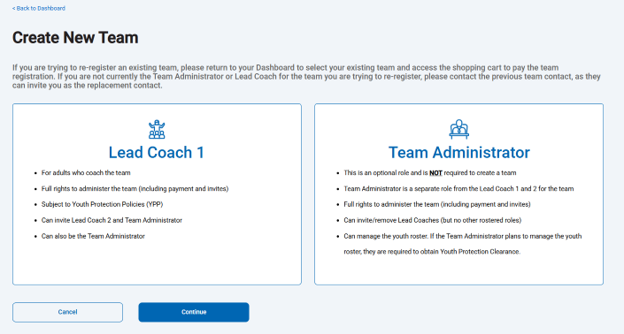
Select Continue, then choose FIRST LEGO League on the program selection screen.
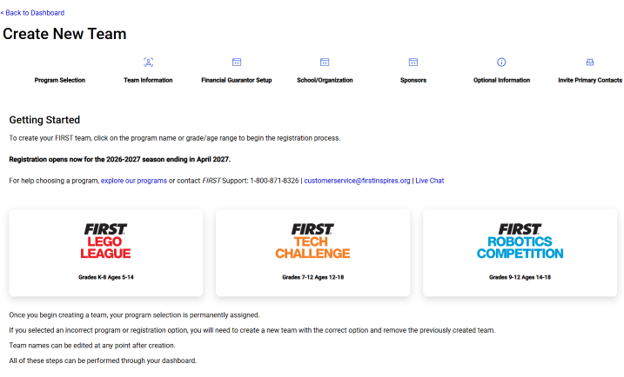
Step 2 — Open the Participation Options
After selecting FIRST LEGO League, you will see information about Founders Edition and Future Edition.
Select Select Participation Option to open the registration questions.
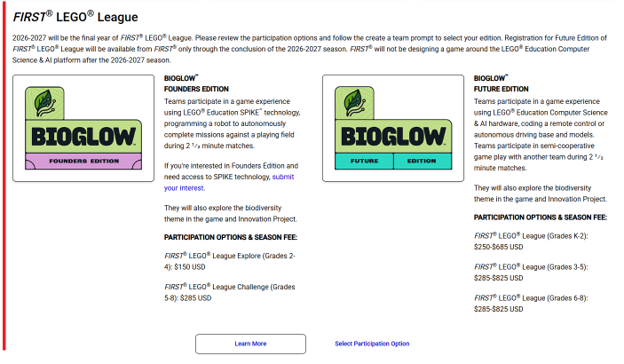
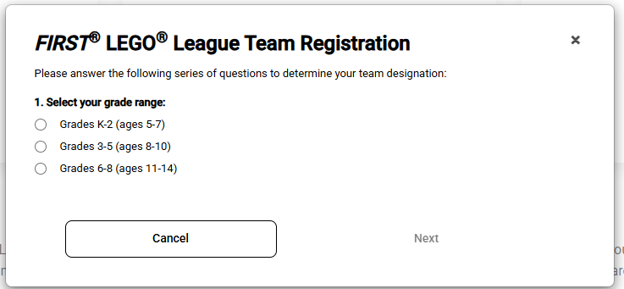
Step 3 — Select Your General Grade Range
Choose the grade range that best represents your team.
This first answer is not your final program selection. For example, a team selecting Grades 3–5 can still reach Founders Edition Challenge through the later questions, as shown in the screenshots.
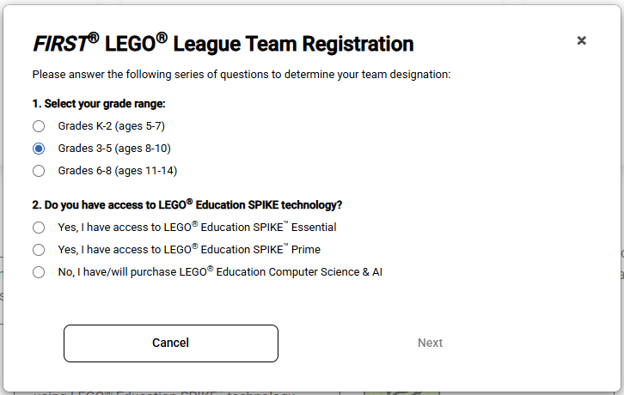
Step 4 — Choose the Equipment Answer That Leads to Your Program
The equipment question affects which participation options appear next.
If you intend to register for Challenge, select “Yes, I have access to LEGO Education SPIKE Prime.” This is the registration path shown here for reaching the Challenge option.
Challenge also accepts SPIKE Essential, EV3, or MINDSTORMS. If your team uses one of those robots, the SPIKE Prime wording on this screen does not mean you must purchase a different robot to participate in Challenge.
The other answers can lead teams toward different experiences:
Selecting SPIKE Essential may route your team toward Explore.
Selecting Computer Science & AI leads toward Future Edition.
If your team is still obtaining equipment or needs help navigating the questions, contact FIRST Support.
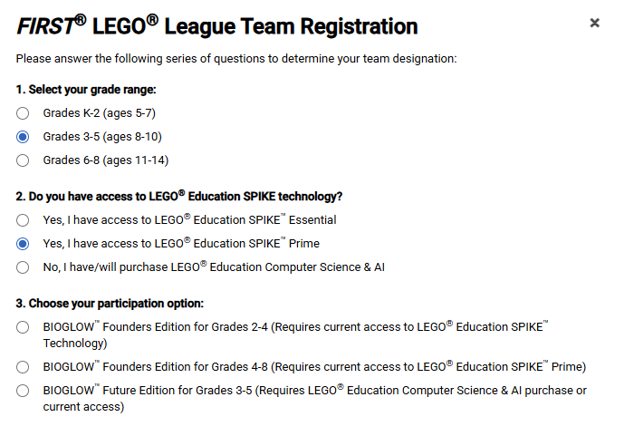
Step 5 — Select the Participation Option You Want
For Challenge, select:
BIOGLOW Founders Edition for Grades 4–8
Choose this participation option if Challenge is your intended program, including when your team has some younger students. Student eligibility requirements still apply, and younger students may need an age exemption. Review the FLL FAQ for guidance.
For Explore, select the Grades 2–4 Founders Edition option.
For Future Edition, select the relevant Future Edition grade band. Our FAQ includes guidance for teams with students across multiple grades.
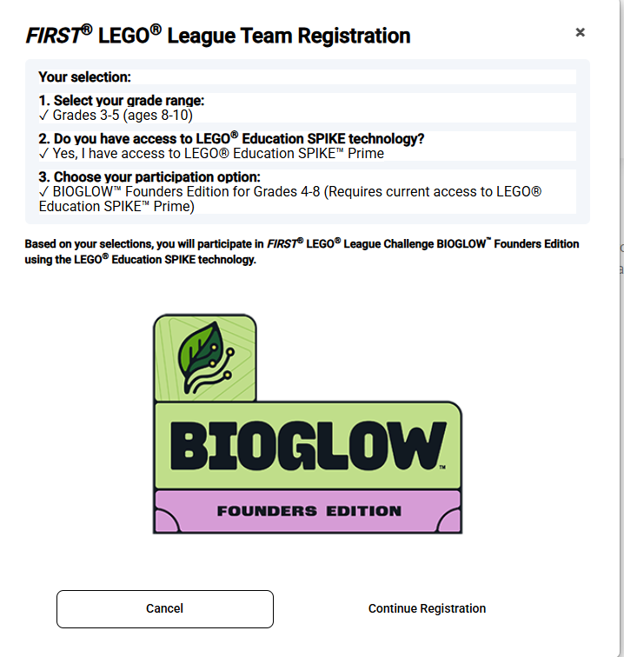
Step 6 — Check Your Final Program Selection
Before selecting Continue Registration, read the summary carefully.
A team registering for Challenge should see:
FIRST LEGO League Challenge BIOGLOW Founders Edition
If the summary shows Explore or Future Edition and that is not what you intended, return to the questions and correct your selection before continuing.
Continue through the remaining team information, organization, and contact steps. Before paying, review the registration and equipment items in your FIRST storefront cart.
Already Selected the Wrong Edition?
You can pursue Founders Edition if Future Edition is not the right fit for your team.
If you are still answering the registration questions, return to the participation options and choose the Founders Edition experience you want.
If your team record has already been created, contact FIRST Support for help with the change. The dashboard warns that an incorrect program selection may require creating a new team with the correct option and removing the earlier record. Ask Support how to handle your existing registration or order before creating a replacement team or purchasing additional items.
For help choosing a Texas experience, email texasinfo@firstinspires.org. Include your team number, intended program, equipment, and any registration issue.
Plan for Texas Event Participation
National team registration and Texas event selection are separate steps. Creating or registering your team does not reserve a spot at a Texas event.
Visit our FLL Pricing and Registration page for Texas fees and registration guidance, and check your regional FLL resources for local event updates.
Interested in a Future Edition Event?
We want to understand where teams are interested in participating and how far they could travel.
Please let us know:
Whether your team would attend a Future Edition event if one is available.
Whether the currently planned Temple event could be an option.
The maximum distance or travel time your team would consider.
Your responses will help us assess demand and plan potential additional opportunities. An interest response does not reserve a spot or guarantee an event.