

Every file import on the site works the same way: you choose a file, the site checks it, you confirm the columns, you see what each row will do, and nothing is written until you press the final button. If something is wrong, you get a plain explanation and can send it to the developer in one click.
Where the importers are
Admin → Teams has three bands, one above the other. Click a band's title or its arrow to open it.
- Import teams via CSV file — the Team Status Report from Tableau (FIRST HQ's roster), or an outside partner's roster.
- Import FTC & FRC teams via FIRST API — asks FIRST's own systems for every Texas FIRST Tech Challenge and FIRST Robotics Competition team. No file needed.
- Import event payments via CSV file — the local event payment report.
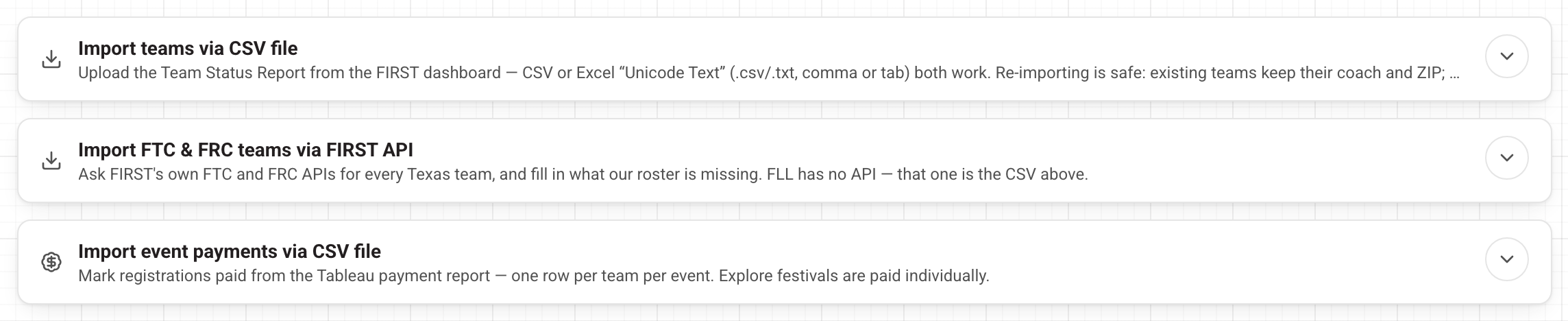
Admin → Events has two more: Import events from CSV file and Import FTC & FRC events via FIRST API.
FIRST LEGO® League has no API, so FLL teams always come from the roster file and FLL events from the events file.
The five steps (teams and events files)
- Select the file. Press Select CSV or Excel file. A .csv, .xlsx or .xlsm works, up to 5 MB. From a workbook, the first visible sheet is read. For the roster, choose FIRST Texas roster, or Outside teams from a partner for a partner's teams (you type the partner's name). Then press Check the file.
- Check the file. The site reads the file before anything is matched or saved and reports in three groups: the file itself, whether it matches the layout we expect, and anything to worry about (cells that start like a formula, macros, odd characters).
- Match the columns. The site matches what it can. Fix anything marked red; amber means a column wasn't found, which is fine if the file doesn't carry it. If every column needed was found, the site skips straight to step 4.
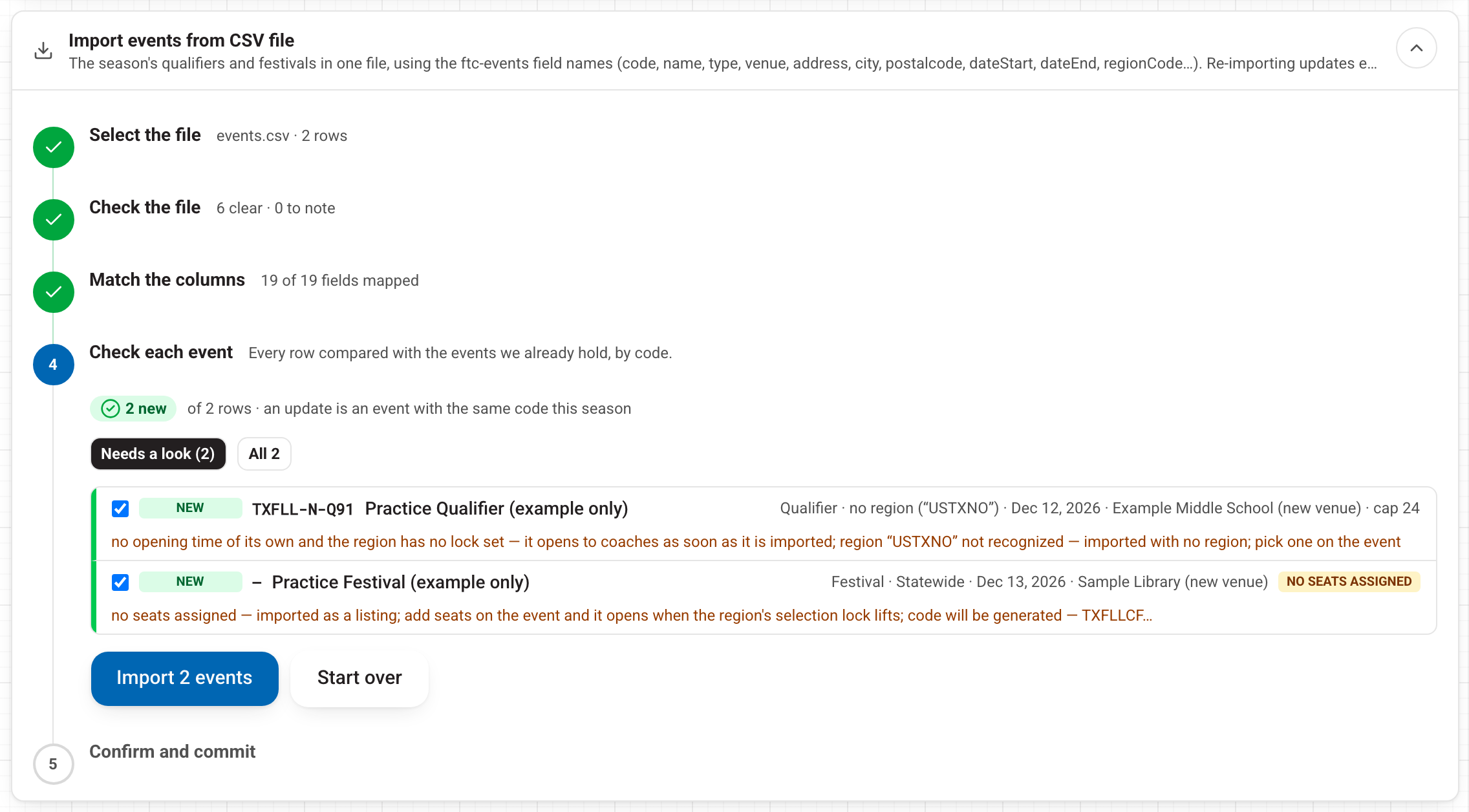
- Check the rows. Every row is compared with what we already hold: New, Update, No change, Possible duplicate, Missing data. The list opens on the rows that need a look; Review all shows everything. Untick a row to skip it.
- Confirm and commit. The button at the foot of step 4 (Commit N teams or Import N events) is the only thing that writes. When it finishes you see how many were added, updated and skipped, then press Done.
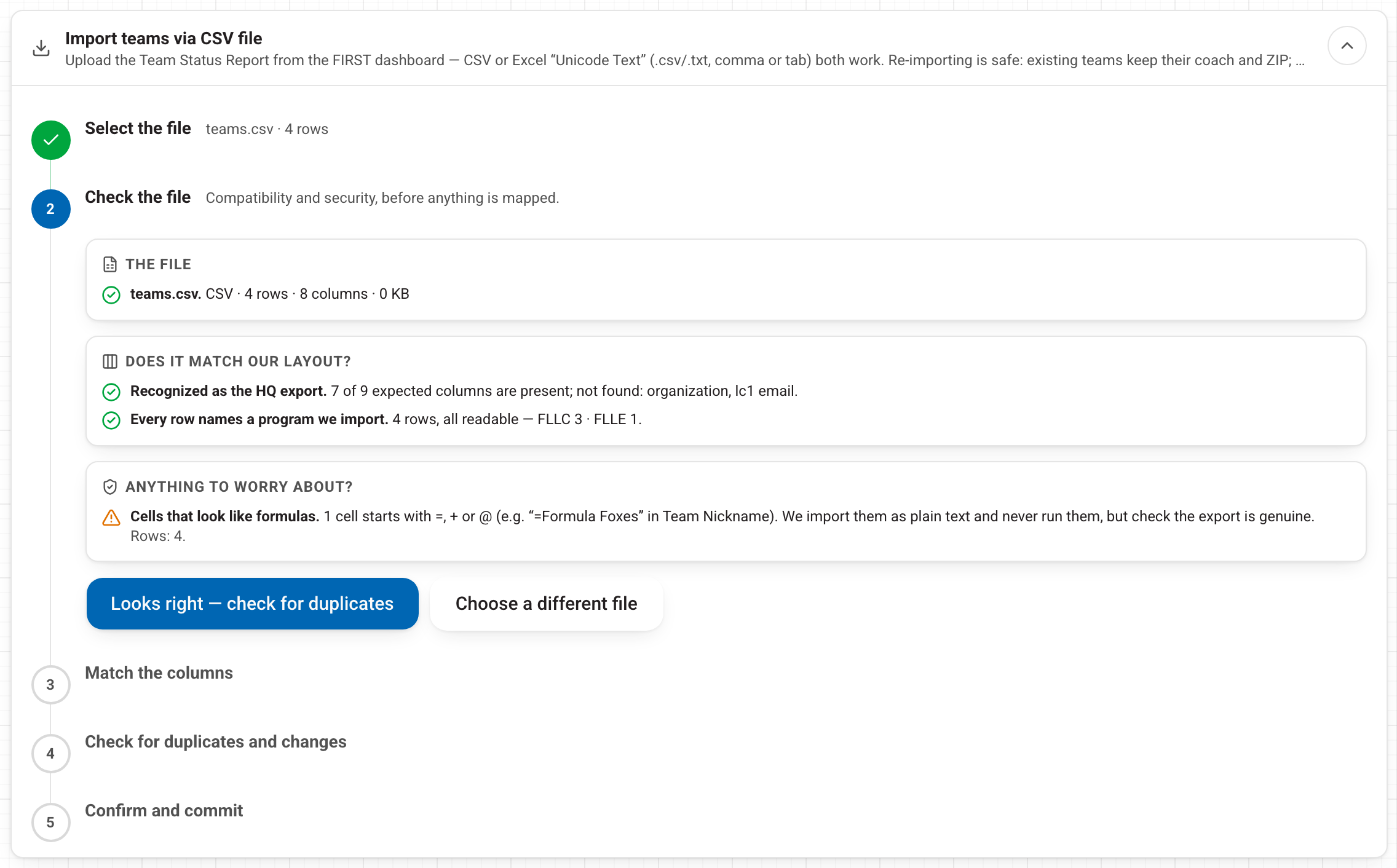
A warning or a stop?
- An amber warning is worth reading but does not block you. Examples: a cell that looks like a formula (it is stored as plain text and never run), a column we didn't find, a row with no seats.
- A red stop means the file cannot be imported as it stands — for example an empty file, or a roster whose Program column names nothing we import. You see That didn't work and the words "Nothing has been written to the database."
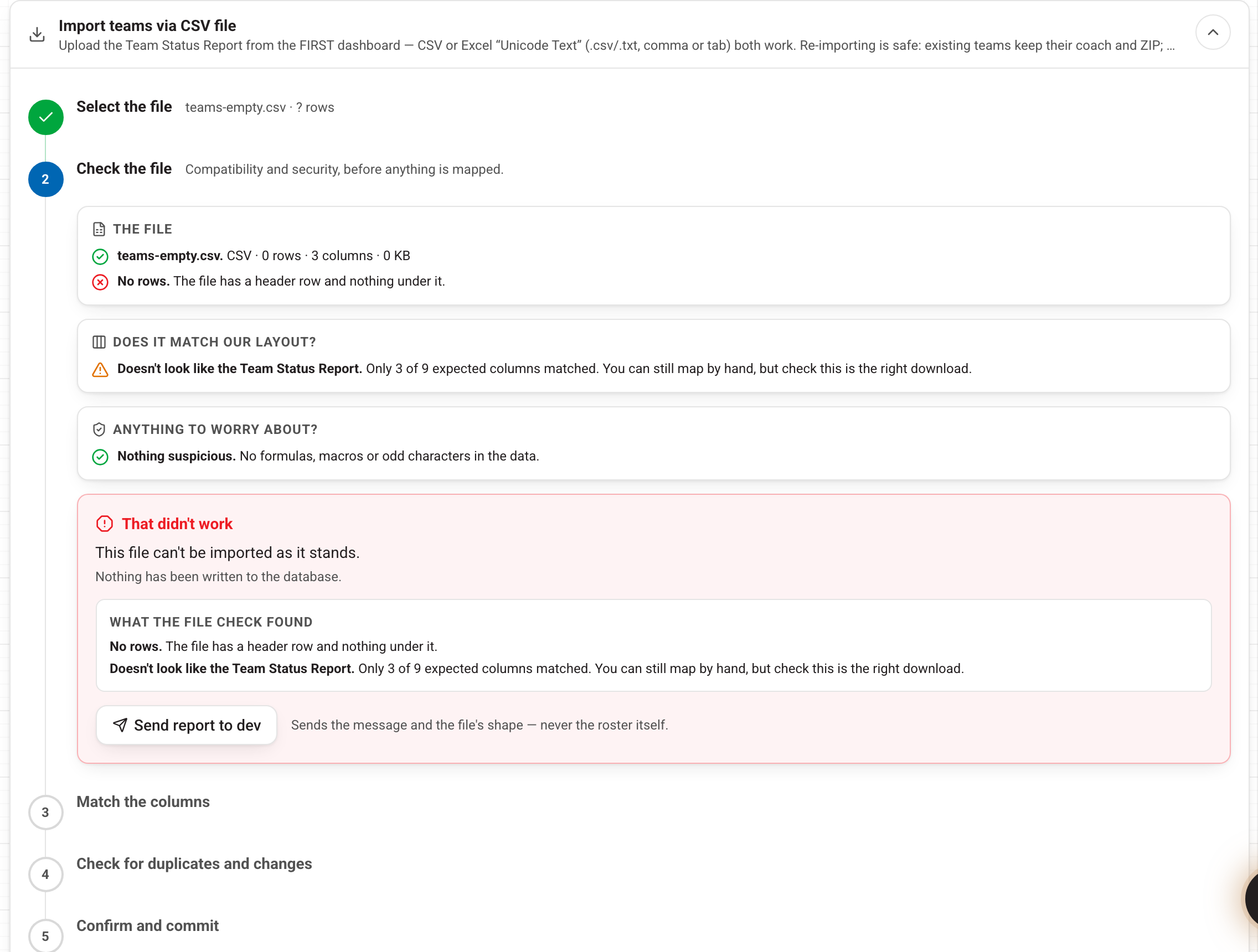
Press Send report to dev and the problem is filed on Admin → Change log. It sends the message and the file's shape (rows, columns, which checks failed) — never the roster itself.
Checking the rows before you commit
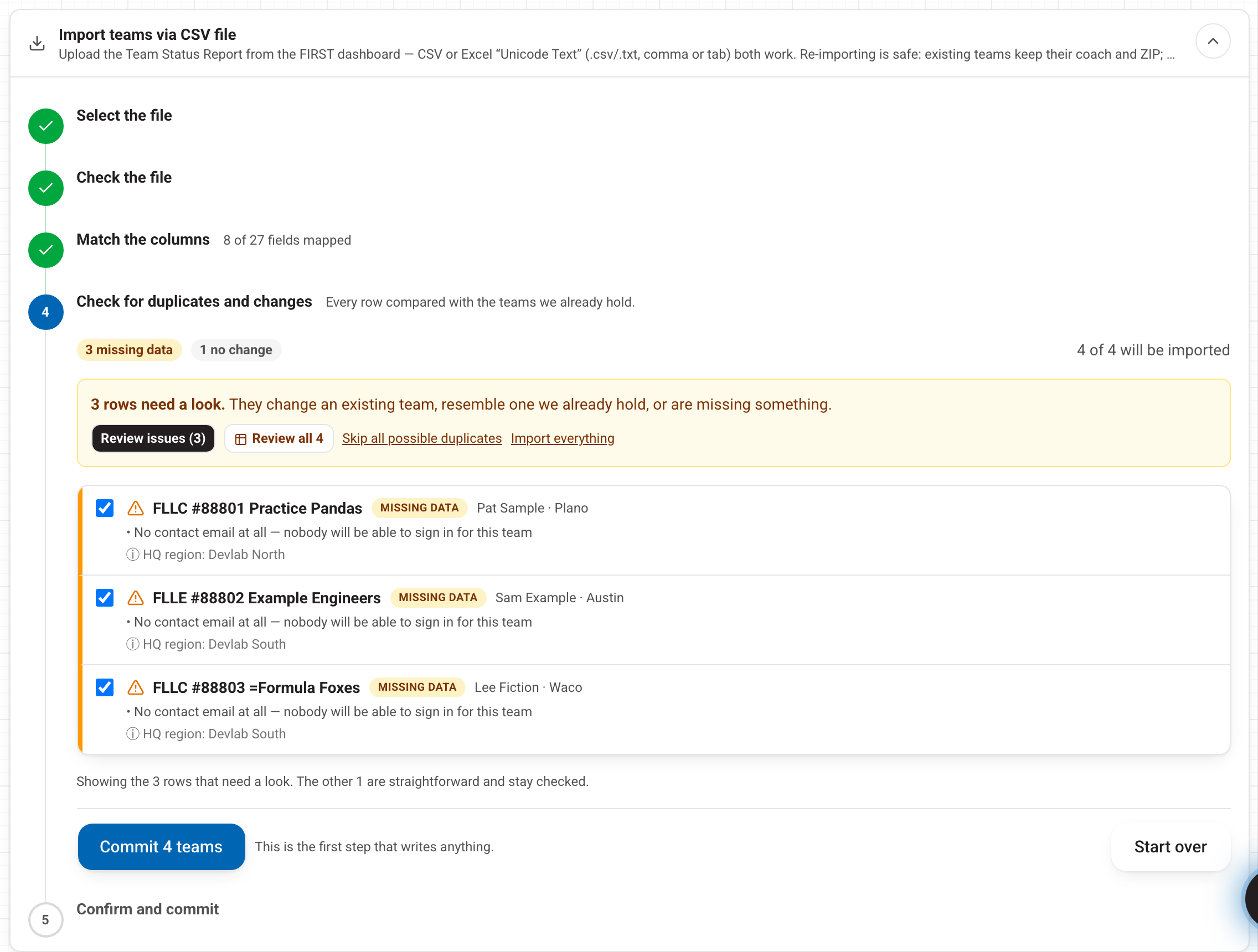
A row marked Possible duplicate shows the existing team beside the incoming one, with Import as a separate team or Keep existing, skip this row. Teams with the same name are common, so compare the team numbers.
The events file works the same way. A row with no seats imports as a listing and is flagged No seats assigned; an unknown region imports with no region and asks you to pick one on the event.
If some rows fail
An import never throws away the whole file for a few bad rows. The rows that can go in go in, and the ones the database refused are listed at the end with the reason. Fix those rows (or the event or team by hand) and run the file again.
Running a file again is safe
- Teams are matched by program and team number. Running the same roster twice updates the teams; it does not add copies.
- Events are matched by event code within the season. A row with no code is matched by the same name and date it had last time, so a re-run after a partial failure updates rather than duplicates.
- Payments: re-importing the same report is safe when it carries an order or transaction ID.
Payments in two steps
Import event payments via CSV file is shorter: Choose payment report, press Preview, confirm the columns, then Mark N payments. A row that names an event marks that registration paid. A row with only a team and a fee type (for example "FLL Qualifying Event Fee") records a fee credit that is used as soon as the team selects a matching event. Rows that don't match a team or event are counted, never guessed.
FTC and FRC from FIRST's API
Open Import FTC & FRC teams via FIRST API (or the events one on Admin → Events). Press Start to compare FIRST's list with ours and see every row, or Check currency for a one-line answer. Neither writes anything. Then Import these teams (or events) writes. These importers cannot touch FLL teams or events.
Something not adding up? Use Help in the account menu, or press Send report to dev on the failure panel.