

Admin → Account Access lists everyone with an account and is where you help someone get in. Each row has Edit (who they are) and Access (how they sign in).
Find the person
Type in Search name or email…, or use the chips above the list (Admins, RPAs, Event directors, Coaches, No teams yet). Click a column heading to sort.
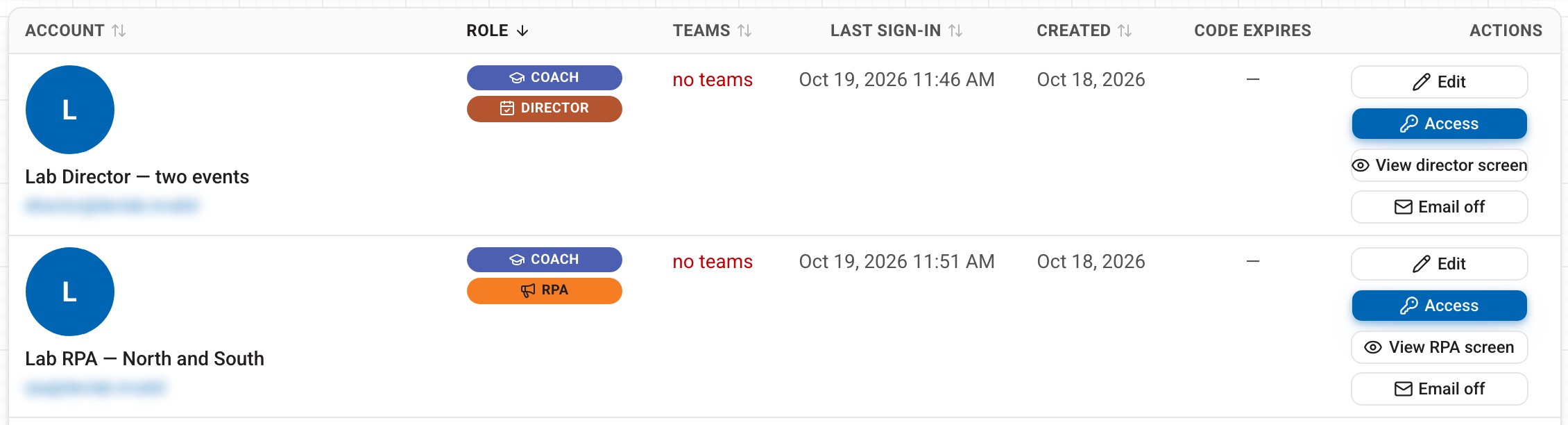
- Teams is a count. "no teams" in amber means the address is on the HQ roster but no team is linked yet; in red, the address is not on the roster at all. Hover for the reason.
- Code expires counts down to when their access code stops working. A dash means they have no code and sign in with a magic link.
Access codes and how long they last
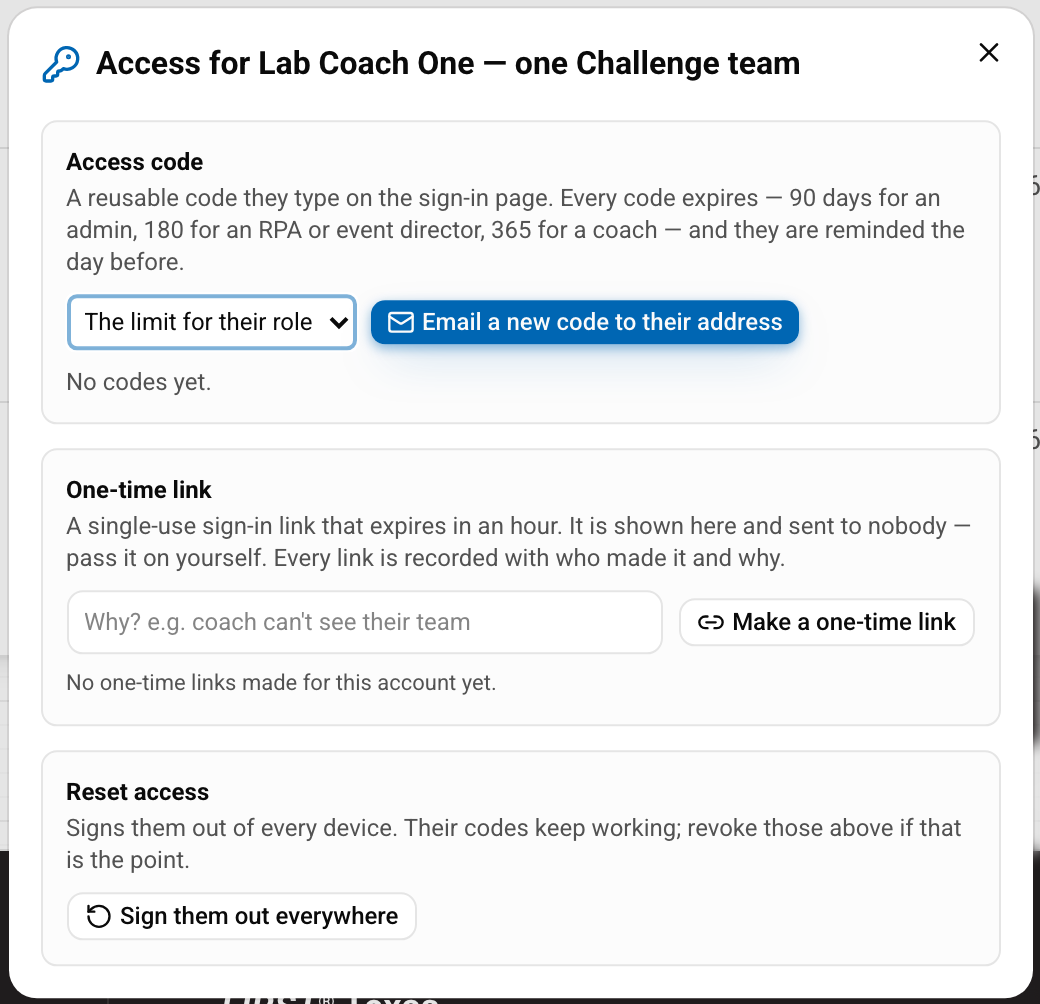
Press Access on the row. An access code is a reusable code the person types on the sign-in page. Email a new code sends it to them; you never see it.
Every code expires, and the limit depends on the person's role:
- Admins: 90 days
- RPAs and event directors: 180 days
- Coaches: 365 days
Leave the length on The limit for their role, or choose 1, 7 or 30 days for something shorter. Nothing longer is possible. People are reminded the day before a code runs out. Revoke a code from the list under it if it goes astray.
One-time link (break-glass)
Make a one-time link creates a single-use sign-in link that lasts an hour. It is shown to you and sent to nobody, so pass it on yourself, only to the account holder.
You must type a reason first (for example "coach can't see their team"). The reason, your name and the time are recorded, and the account's Links made for this account list shows each link and whether they signed in afterwards. Use it when nothing else works — whoever opens the link is signed in as that person.
Sign them out everywhere ends their sessions on every device. Their codes keep working; revoke those if that is the point.
Someone not in the list yet
Use Generate a sign-in link at the top of the page, for an HQ-roster coach who has never signed in or a first-time admin. Enter their address and a reason, then:
- One-time link shows you a link to copy and pass on.
- Email link sends a sign-in link to their inbox.
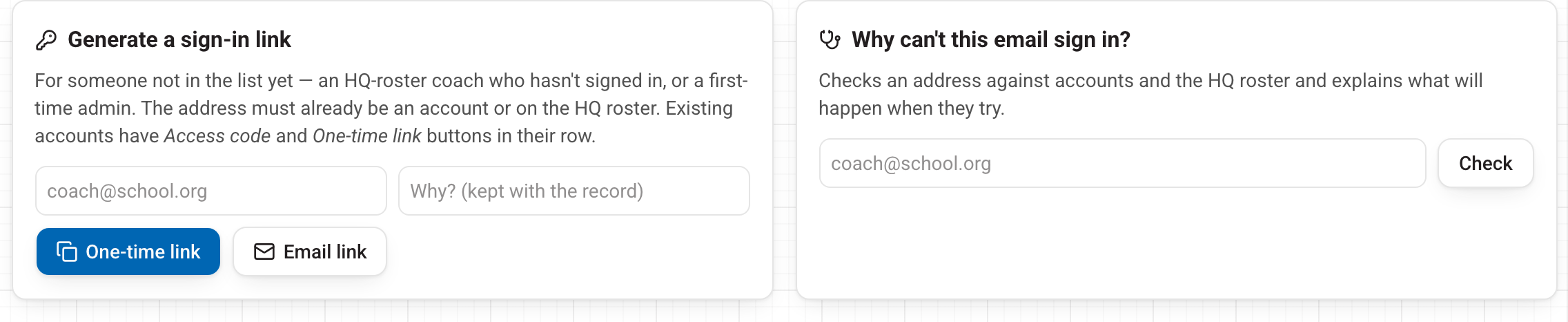
Why can't this email sign in? checks an address against accounts and the HQ roster and explains what will happen when they try — use it first when a coach says the link never came.
Email while testing (before launch)
Until launch, the site only emails staff and people we have invited in. The Email off button on a row means that person gets no email from the site. Press it (it becomes Email on) to let them receive email while we test. Admins don't need it. If Email link says the address isn't set to receive email, either turn Email on for them or use One-time link and pass it on yourself.
See an RPA's or director's screen
RPAs and event directors have View RPA screen or View director screen on their row. It opens their dashboard exactly as they see it, read-only: tabs work, but nothing can be changed. Each view is recorded in the Activity log. Press Exit on the blue bar to return.

Edit details
Edit opens Account details: name, title and photo, the Promotions panel (make someone an RPA, an event director or a coach on a team), and Disable this account at the foot. Disabling stops every way in at once; nothing is deleted and it can be undone there.
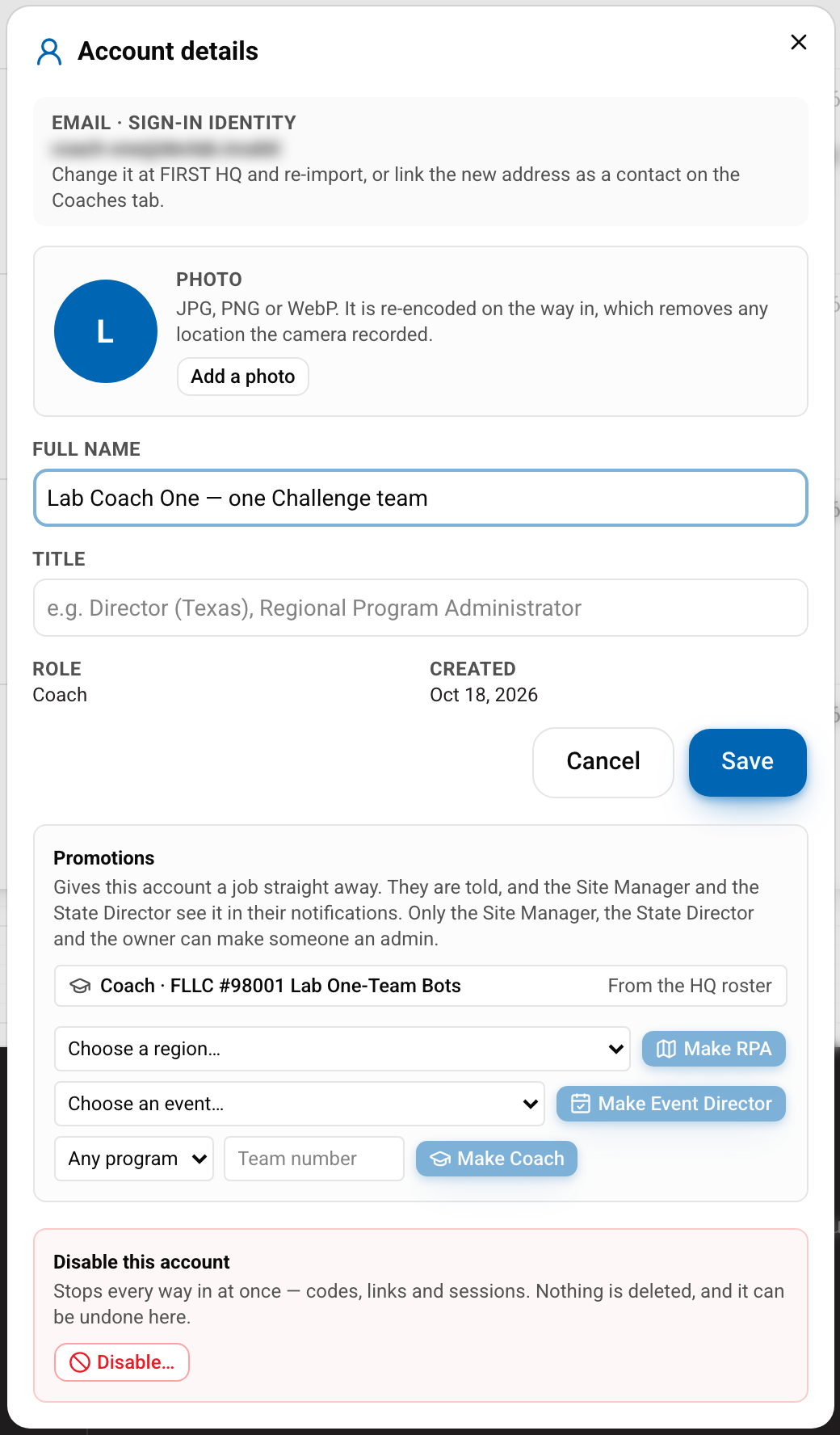
A coach's sign-in address comes from FIRST HQ. To change it, change it at HQ and re-import, or add the new address as a contact on the Coaches tab.
Stuck? Use Help in the account menu. For importing the roster, see Importing teams, events and payments.