

The top of Admin → Overview holds the switches that decide when and how coaches can select events. Every one of them takes effect immediately for the whole region or state, so read the confirmation before you press anything.
The HQ Secured gate
This card decides whether a team must be HQ Secured (its season fee paid with FIRST HQ) before it can hold a seat.
- On (green, "Required"): only Secured teams can select or be placed. The card says how many teams it is holding back.
- Off (amber, "Relaxed"): unsecured teams can hold a seat and only see a warning.
Switching it off asks first and lists what will change. Either way, a team's own status never changes: an unpaid team still shows as not Secured.

Event selection controls
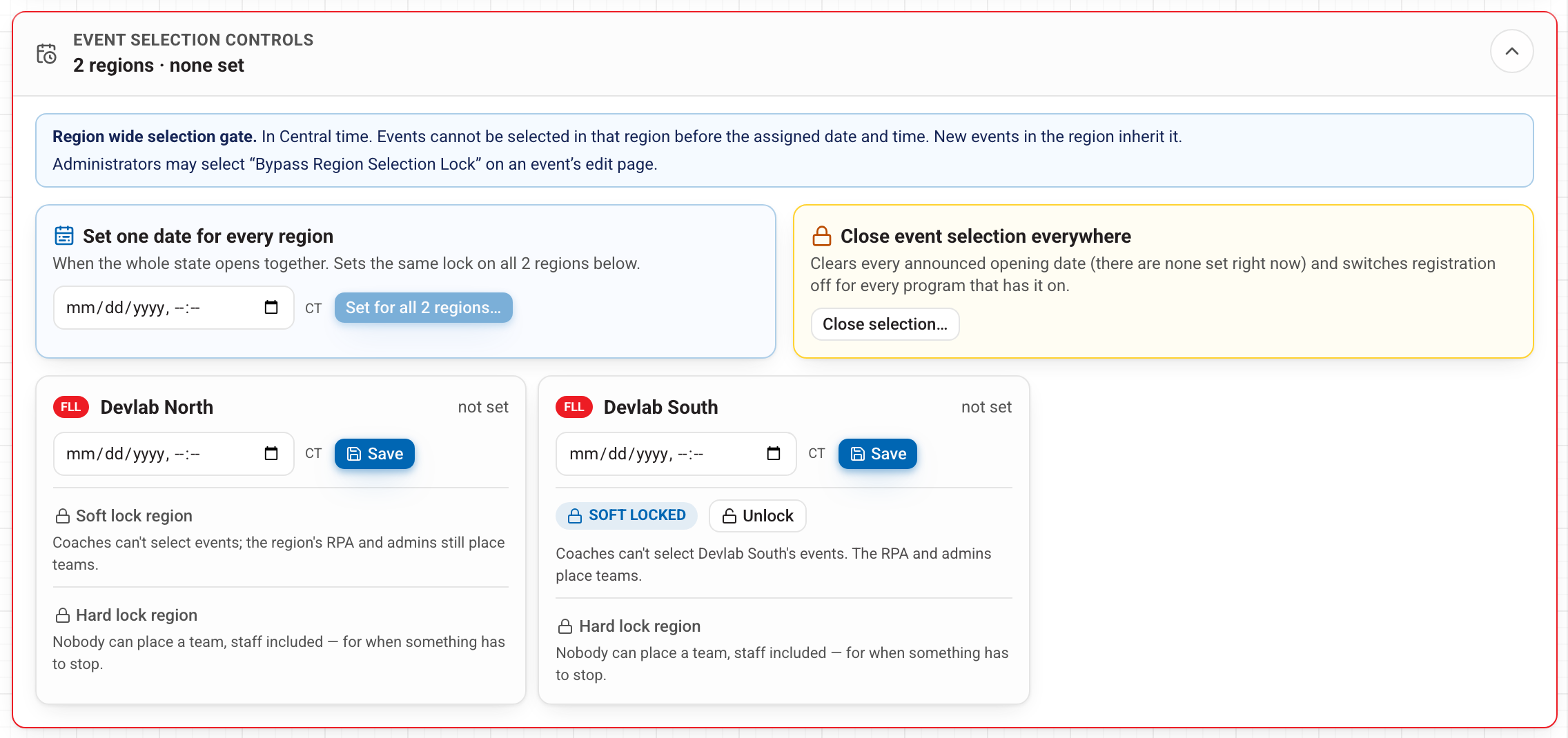
Click Event selection controls to open the card. Each region with event selection has its own box.
A region's selection date is a master gate
Set a date and time (Central time) in a region's box and press Save. Until then, coaches cannot select any event in that region, whatever the event's own opening time says. After it passes, each event's own opening and closing dates apply. New events in the region inherit it. Staff can still place teams before the date.
- Set one date for every region puts the same date on every region at once. It asks before saving.
- To change or clear a date, press Edit in the region's box. A region with no date is open: each event's own times are all that apply.
- Close event selection everywhere clears every date and switches selection off for every program. No team is withdrawn and no seat is given up. Turn programs back on from Admin → Visibility.
Soft lock and hard lock
- Soft lock region: coaches can't select events in the region; they see that their RPA places teams. The region's RPA and admins still place every team. This is the normal setting for regions where the RPA does all placements.
- Hard lock region: nobody can place a team in the region — coaches, RPAs, directors and admins — including events set to bypass the region lock. Use it when something has to stop.
Both ask before locking and say what will stop. Unlock gives the power back straight away. In both cases, teams already placed stay placed, and withdrawing a team or marking a fee paid still works.
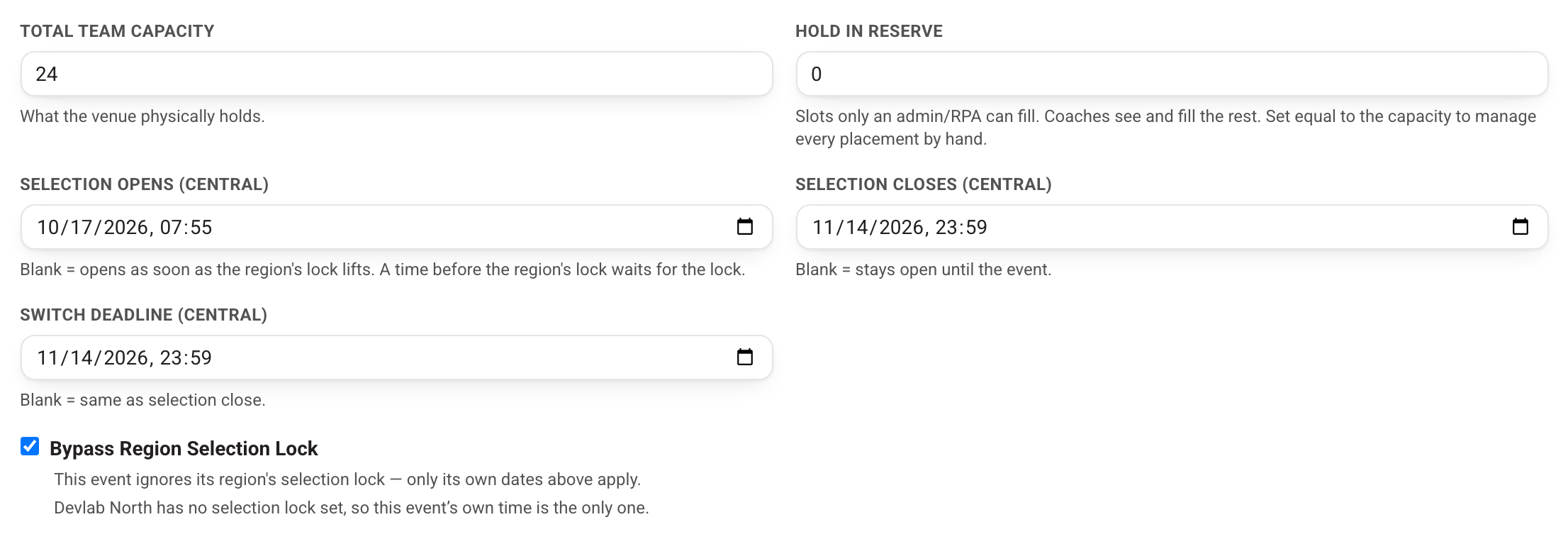
Bypass Region Selection Lock (on an event)
On an event's edit page, in the selection settings, admins see Bypass Region Selection Lock. Ticked, the event ignores its region's date and only its own dates apply. Only admins can change it; an RPA sees when the region opens instead. A hard lock still applies to a bypassed event.
Fee follow-up
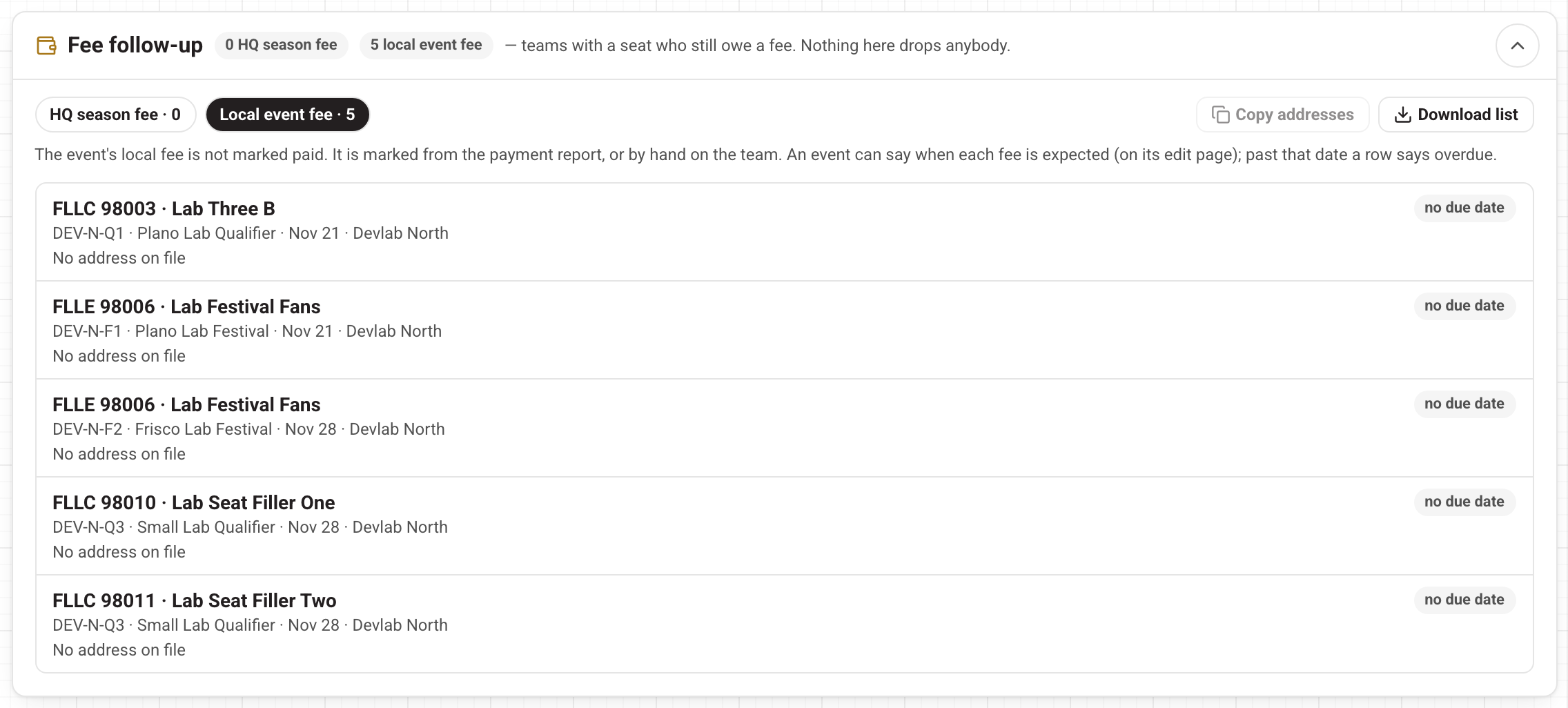
Further down Overview, Fee follow-up lists teams that hold a seat at an upcoming event and still owe a fee, in two tabs: HQ season fee (not Secured on the HQ roster) and Local event fee (the event's own fee not marked paid). Rows say overdue once an event's "fee expected by" date passes; set those dates on the event's edit page.
Copy addresses and Download list give you what you need to follow up. Nothing here removes or moves a team — staff decide that by hand.
Waitlists waiting on a decision
Nobody moves off a waitlist by themselves. This panel lists upcoming events with teams waiting. Open an event and use Give a seat on a waitlisted team to place it.

Unsure what a switch will do? Ask through Help in the account menu before pressing it. See also Account Access.