

If a team is missing from your dashboard, the email you signed in with is almost always different from the one FIRST HQ has for that team. Fix the address in HQ, or tell us which team it is.
How teams reach your dashboard
You never add a team here yourself. FIRST Texas imports the team roster from FIRST HQ, and your dashboard shows every team where your email address is listed as:
- Lead Coach 1 or Lead Coach 2
- Team Admin
- an alternate contact
The match is made each time you open My teams. If you coach several teams, they all appear as soon as your address is on each one.
Why a team might be missing
- HQ has a different email for you. You signed in with your school address, but HQ has your personal one (or the other way round).
- The team is brand new. The roster is refreshed from HQ every Wednesday and Friday, so a team registered this week can take a few days to show up.
- You are not listed on the team in HQ. Ask the team's Lead Coach to add you as a contact in HQ.
What to do
- Try signing in with the other email address you might have used with HQ.
- Check the contacts on your team in your FIRST Dashboard and correct your email there. The change reaches this site with the next roster refresh.
- Still missing? Under your teams on My teams, press Tell us which one.

A help request titled Missing team opens with the questions staff need already filled in. Add the team number, the program, the team name, and the email HQ has for the team if it is not yours. Then press Send message.
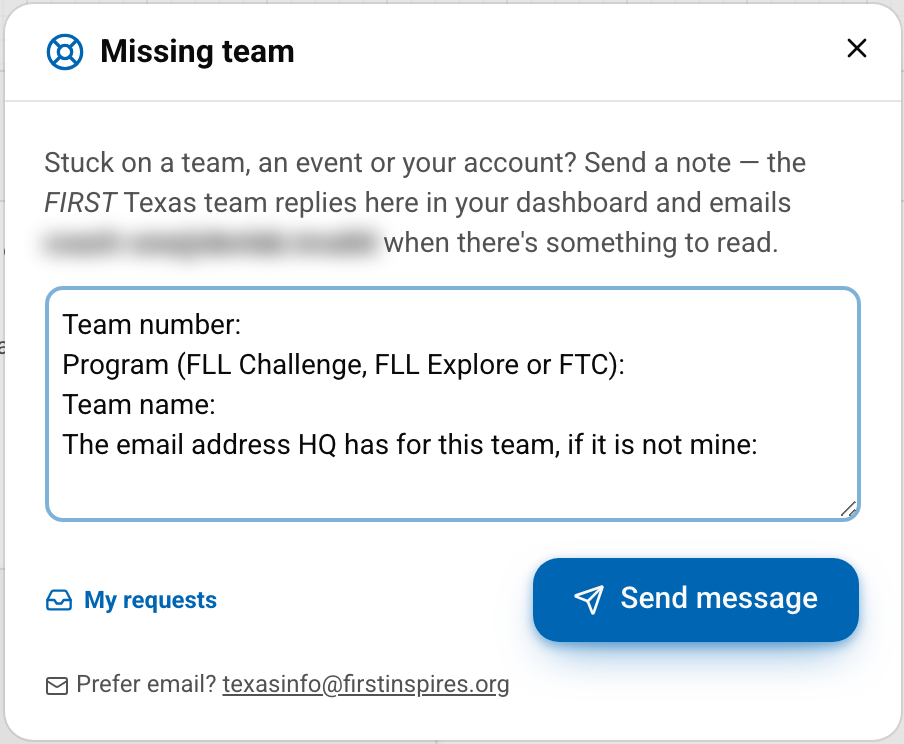
Our reply comes back to your dashboard. You can read it under My requests.
If you have no teams at all, the dashboard shows "No teams are on file" with a Missing a team? Ask us button. It opens the same request.
Once your team is on the dashboard, see Choosing your event. For anything else, open Help in the account menu.