

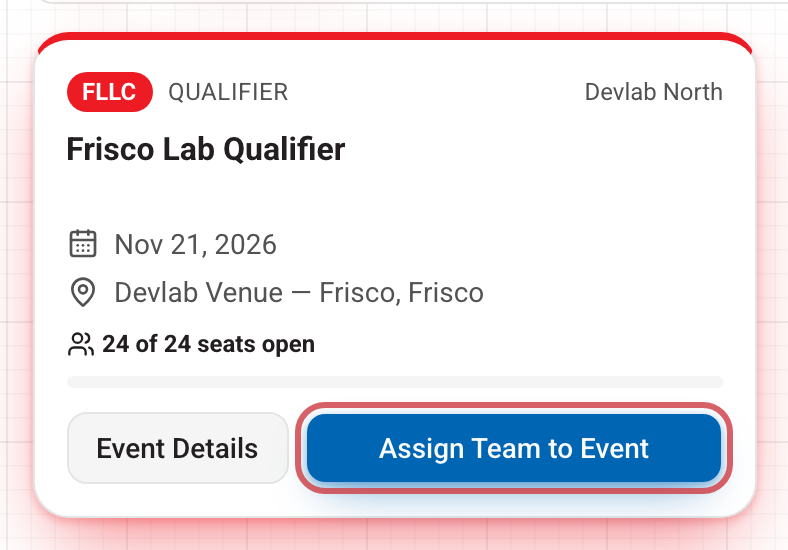
Open My teams, press Choose an event on your team's card, and press Assign Team to Event on the event you want. Your place is held right away.
1. Find your team's card
Each team has its own card on My teams. If the team has no event yet, the card says how many events are open in your region and shows a blue Choose an event button.
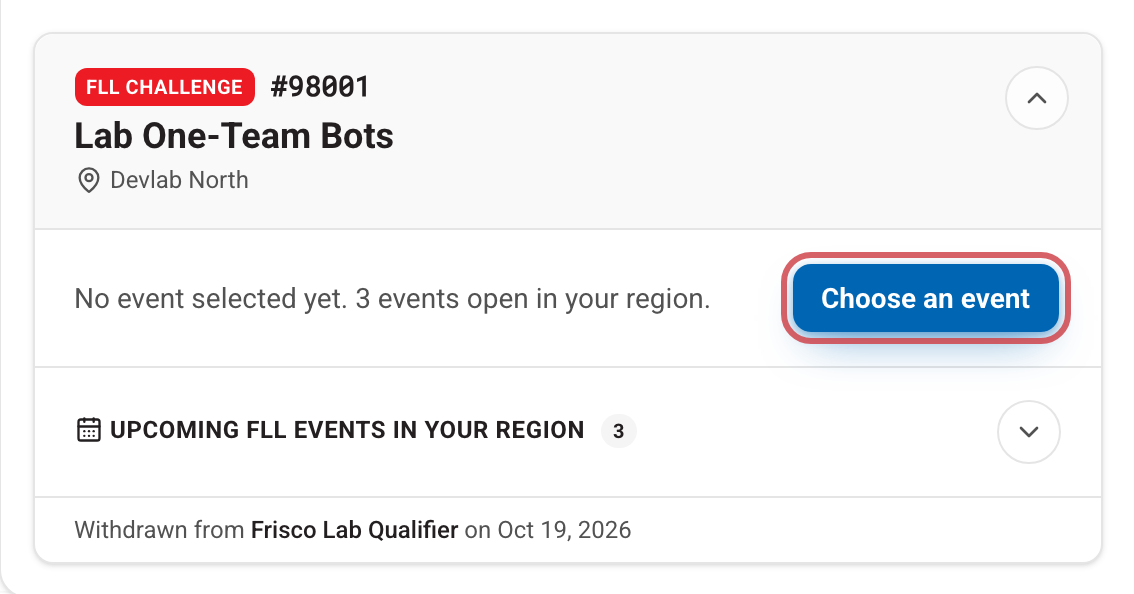
If you coach more than one team, use the Assigning for Team menu at the top of the next page to change which team you are choosing for.
2. Pick an event
The page lists only the events your team can choose: events for its program, in its own region (plus any statewide events). Each card shows the date, the venue and how many seats are left.
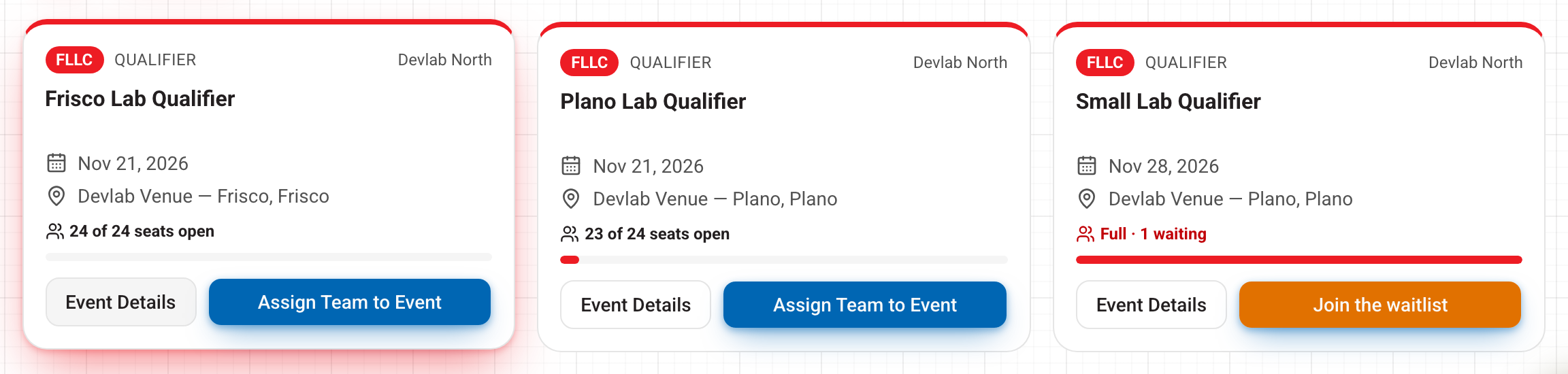
- 24 of 24 seats open — seats are free. The bar fills as teams sign up.
- Waitlist only or Full — every seat is taken. The button turns orange and says Join the waitlist.
- Seats available at the top hides the full events.
- Event Details opens the full event information without choosing it.
Selection is first come, first served. Nothing is held for you while you look: whoever presses first gets the seat.
When selection hasn't opened yet
Some regions open selection at an announced time. Until then, events sit under Opening soon with a countdown such as "Opens Wed Nov 4, 1:00 PM CT · in 3d 2h", and your dashboard shows a line saying when selection for your region opens. The Assign button unlocks on its own at that minute. You don't need to reload the page.
3. Your event is secured
Pressing Assign Team to Event takes you to a page headed Your event is secured. It shows when and where the event is, with directions, and the date you can make changes until.
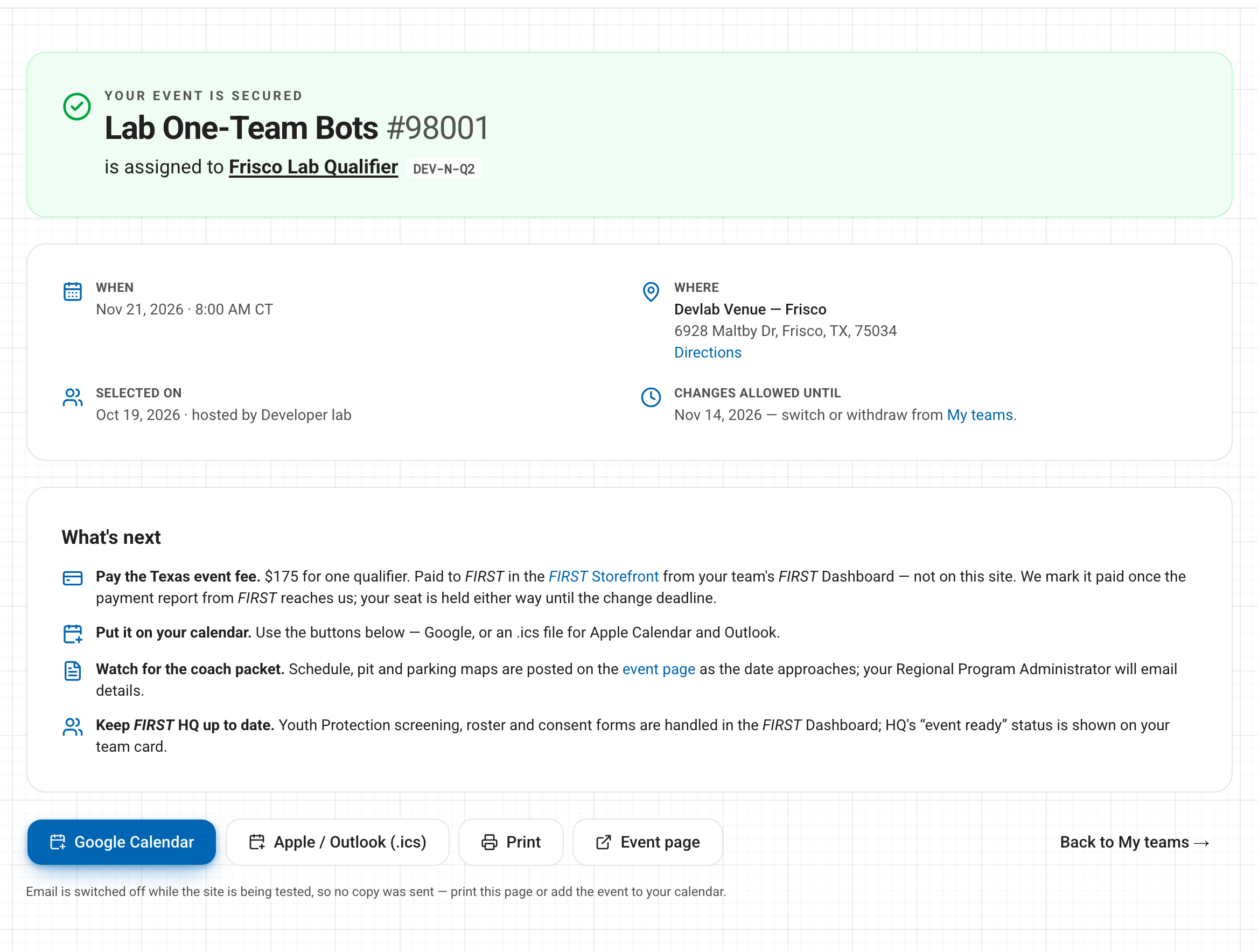
Under What's next you will find:
- Pay the Texas event fee. The amount for your program and region, paid to FIRST in the FIRST Storefront from your team's FIRST Dashboard, not on this site. Your seat is held while the payment is processed.
- Put it on your calendar with Google Calendar or Apple / Outlook (.ics).
- The event documents, or a note to watch the event page for the coach packet.
You can come back to this page any time with Open Confirmation on your team card.
The other way in: the Assignment Board
If you coach several teams, the Assignment Board button at the top of your teams lets you drag a team onto an event. Events light up when they are open to that team. The same rules apply either way.
Can't press the button? See Why can't I choose an event?. Need to change your pick? See Switching or withdrawing.