

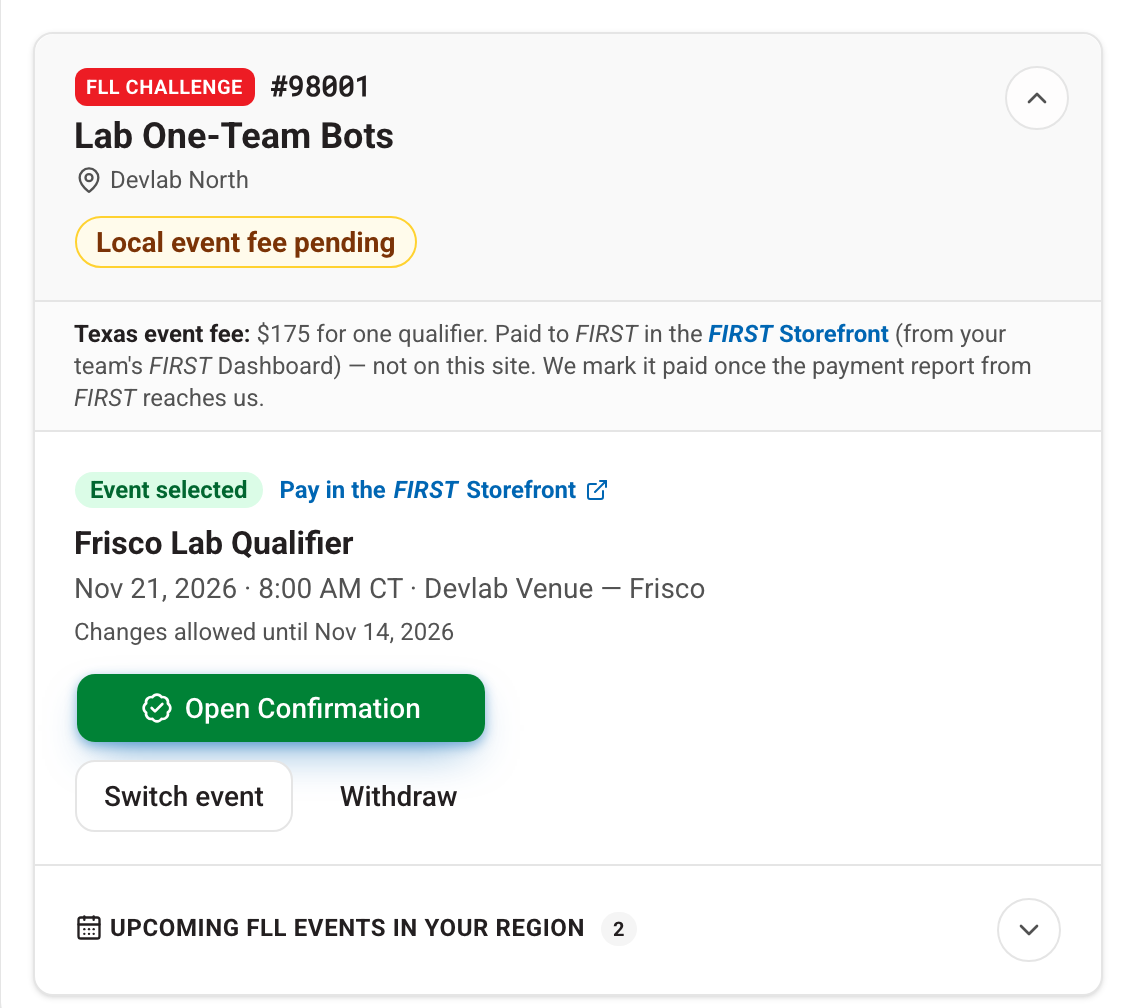
Use Switch event to move your team to another event in one step. Use Withdraw if your team can no longer attend. Both are on your team's card on My teams.
How many events can my team hold?
- Challenge and Future Edition teams (FIRST LEGO® League) hold one competition event per season. Choosing another one is a switch, not a second event.
- Explore teams (FIRST LEGO® League) may attend several festivals. Each one is a separate sign-up with its own local event fee, and adding one never replaces another. Use Add another festival on the card. To drop a festival, withdraw from that one.
Switching to another event
- On your team card, press Switch event.
- Under Move to, choose the new event.
- Press Confirm switch.
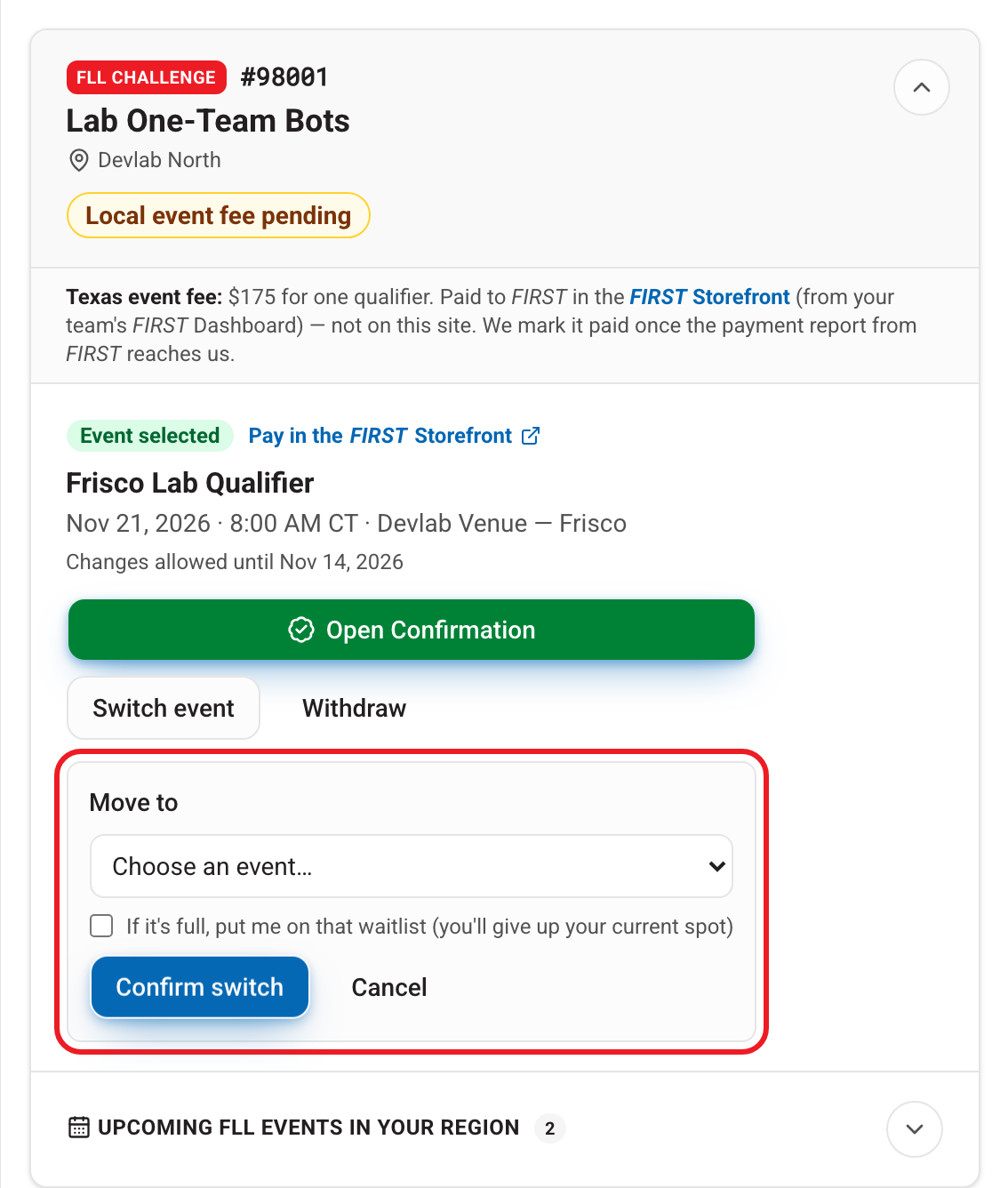
The switch happens in one step: your team gives up the old place and takes the new one together, so it is never left without either. You land on the confirmation page for the new event.
You can also switch from the event list. When your team already holds its event, the other events show Switch Team to Event.
If the new event is full
A switch never puts you on a waitlist by surprise. If the event you pick is full, the switch is refused and you keep your current place. To move anyway, tick If it's full, put me on that waitlist before you confirm. On the event list the button says Switch to the waitlist. Either way you give up your current seat, so only do this if you really prefer the full event.
The switch deadline
Each event has a date you can make changes until. It is shown on your team card as "Changes allowed until …" and on the confirmation page. After that date you can't switch yourself. Ask your RPA if something has changed.
Withdrawing
- On your team card, press Withdraw.
- Read the message and press Withdraw again to confirm.
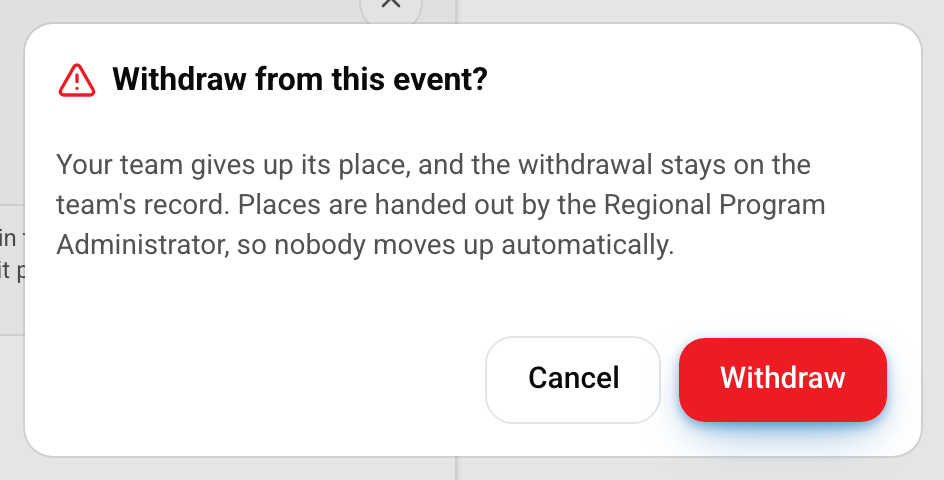
Your team gives up its place, and the withdrawal stays on the team's record. The card notes "Withdrawn from … on …". The seat does not pass automatically to a team on the waitlist: your RPA decides who gets it.
After withdrawing you can choose a new event with Choose an event, as long as selection is still open. See Choosing your event.
Questions about a change? Open Help in the account menu.