

There is no password and no account to create. You sign in with the same email address FIRST HQ has on file for your team, and we email you a one-time link.
Which email address to use
Use the address that is on your team's FIRST HQ registration. Any of these work:
- Lead Coach 1 or Lead Coach 2
- The team admin
- An alternate email listed for any of those people on the HQ roster
A personal address that is not on your HQ registration will not work, even if it is the one you use most. If you coach several teams, one address covers every team it is listed on.
Not sure which address HQ has? Sign in to your FIRST Dashboard at firstinspires.org and check the team's contacts. Changes made at HQ reach this site when the roster is next refreshed, which can take a few days.
Ask for a link
- Go to the sign-in page.
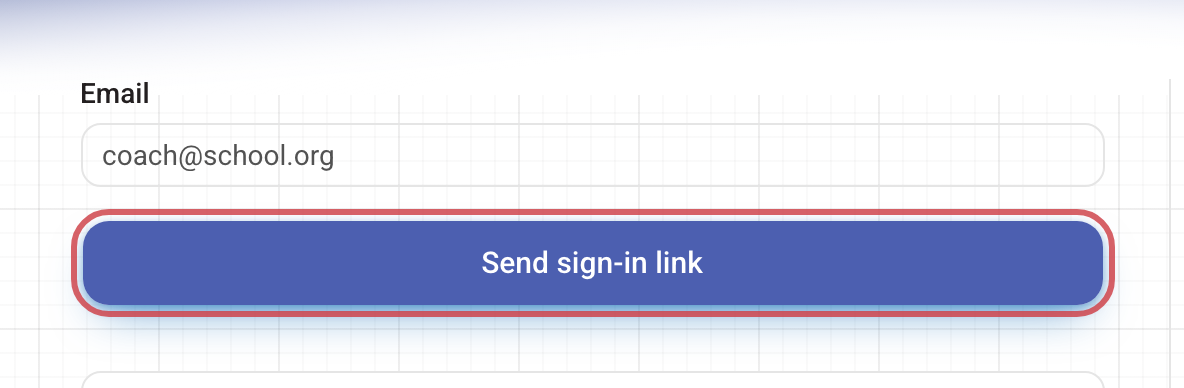
- Type your email address under Email.
- Press Send sign-in link.
You will then see Check your email.
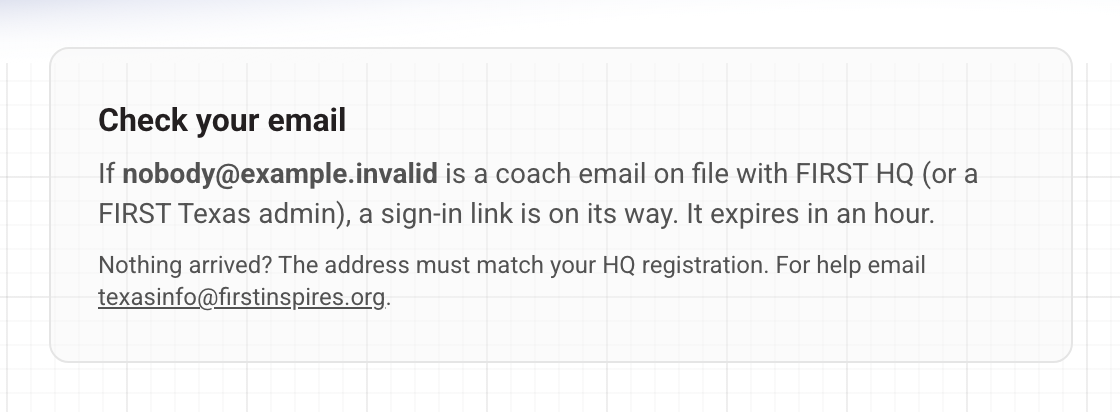
This message looks the same whether or not your address is on file. That is on purpose: it stops anyone using the page to find out whose addresses we hold. So if no email arrives, the most likely reason is that the address you typed is not the one HQ has.
Open the link
The email is titled Your FIRST Texas sign-in link. Open it and press the button inside. It takes you to a page that asks you to confirm — press Continue to your dashboard.
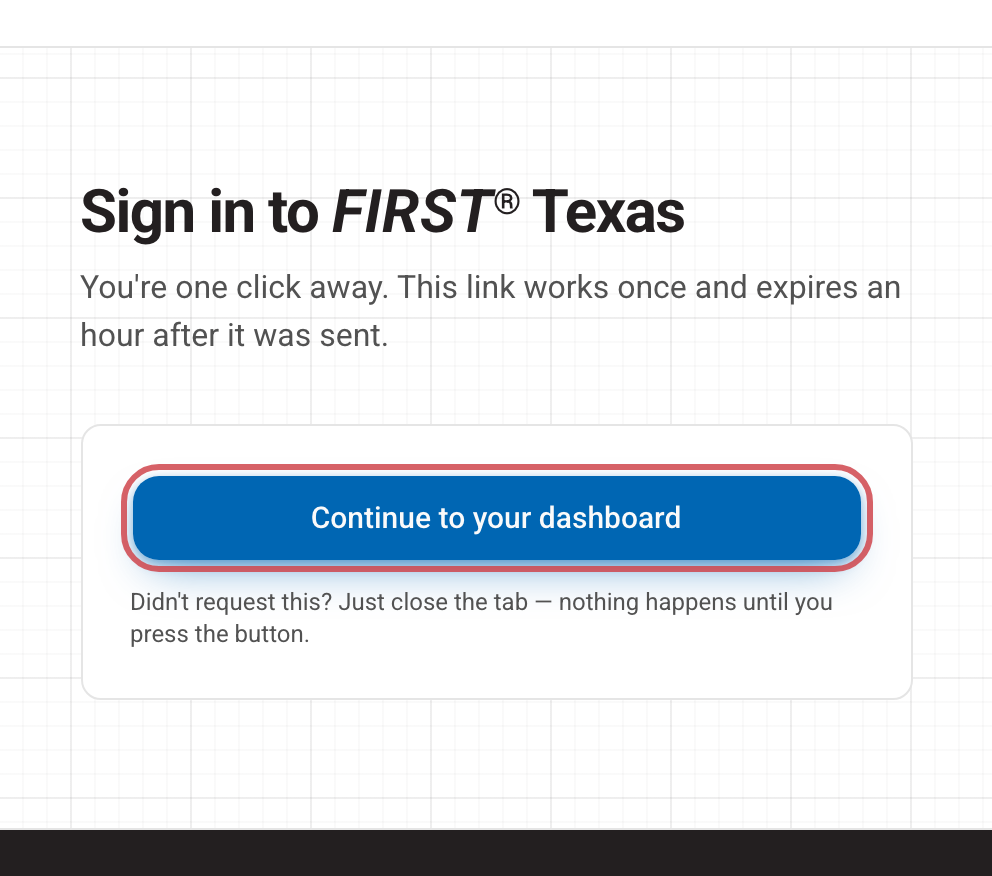
- The link works once. After you have used it, ask for a new one next time.
- It expires an hour after it was sent. If you see "That sign-in link has expired or was already used", ask for a new one on the sign-in page.
- Use the newest email. If you asked more than once, older links may no longer work.
If the email does not arrive
- Wait a couple of minutes, then check your spam or junk folder. School and district mail filters often hold it there.
- Check you typed the address exactly as HQ has it.
- Try again — but not too fast. You can ask for 5 links per address every 10 minutes. Go over that and the page says "Too many attempts — please wait a few minutes and try again."
- Still nothing? Use an access code if you have one (see Access codes), or email texasinfo@firstinspires.org with your team number.
Staying signed in
- You stay signed in on that device until you sign out, until you have been inactive for about 8 hours, or for about 30 hours at most. Then you simply ask for a new link (or use your access code).
- One device at a time. Signing in on your phone signs you out on your laptop, and the other way round. If you are suddenly signed out, check whether you signed in somewhere else.
- On a shared computer at an event, use Sign out in the account menu (your name, top right) when you are done.
Coming from an old link?
The old "register" page now goes straight to the sign-in page. You do not need to claim your team or type a team number — your teams appear on your dashboard as soon as you sign in with the right address.
Once you are in, the Help item in the account menu reaches a person if anything still looks wrong. See Getting help.