
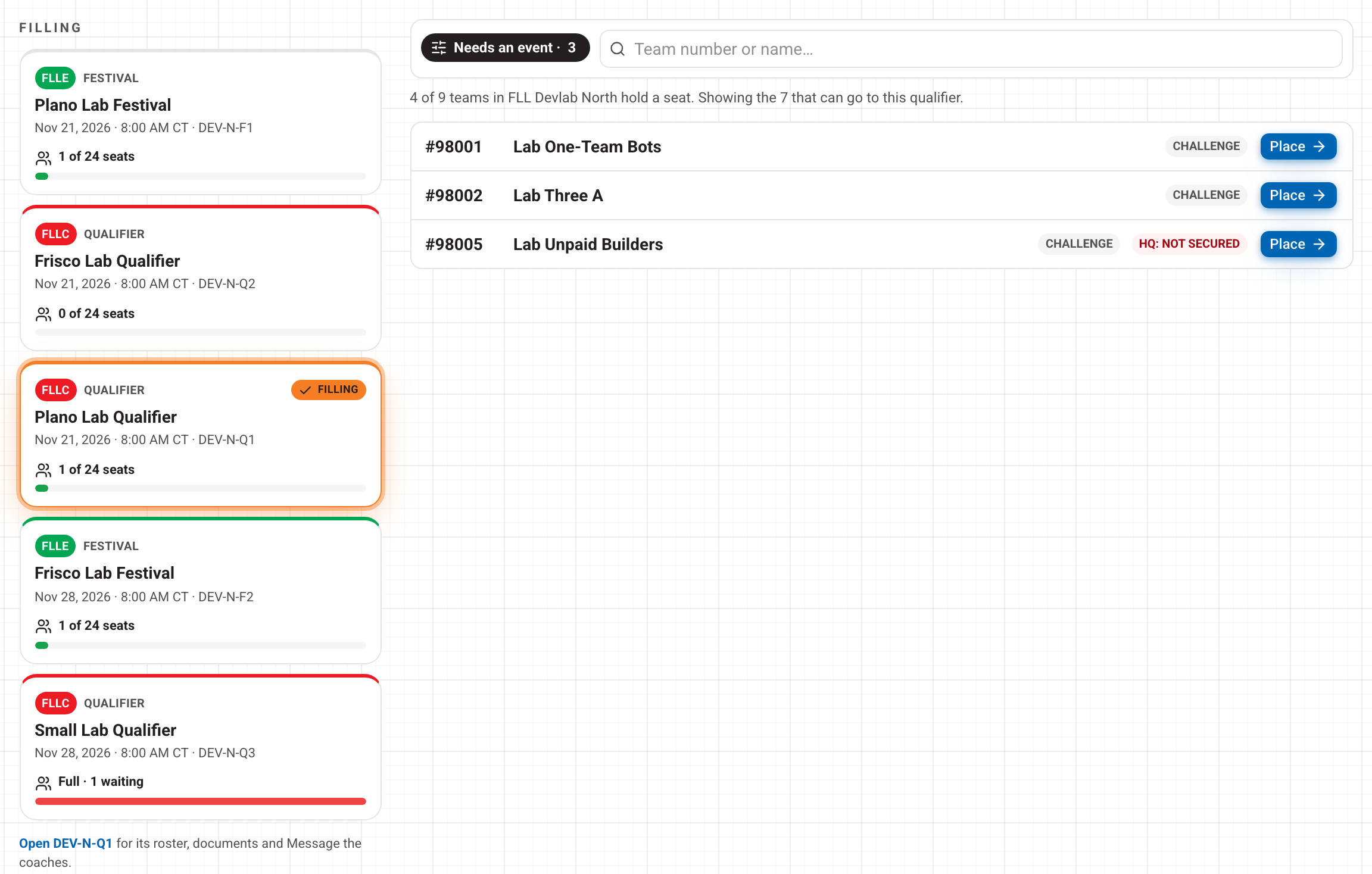
Open Assign Teams to Events, press the event you are filling, then press Place beside each team that should go there. You confirm each one, and the team is placed.
Step by step
- Open Assign Teams to Events on your dashboard. If you run more than one region, pick the region at the top right.
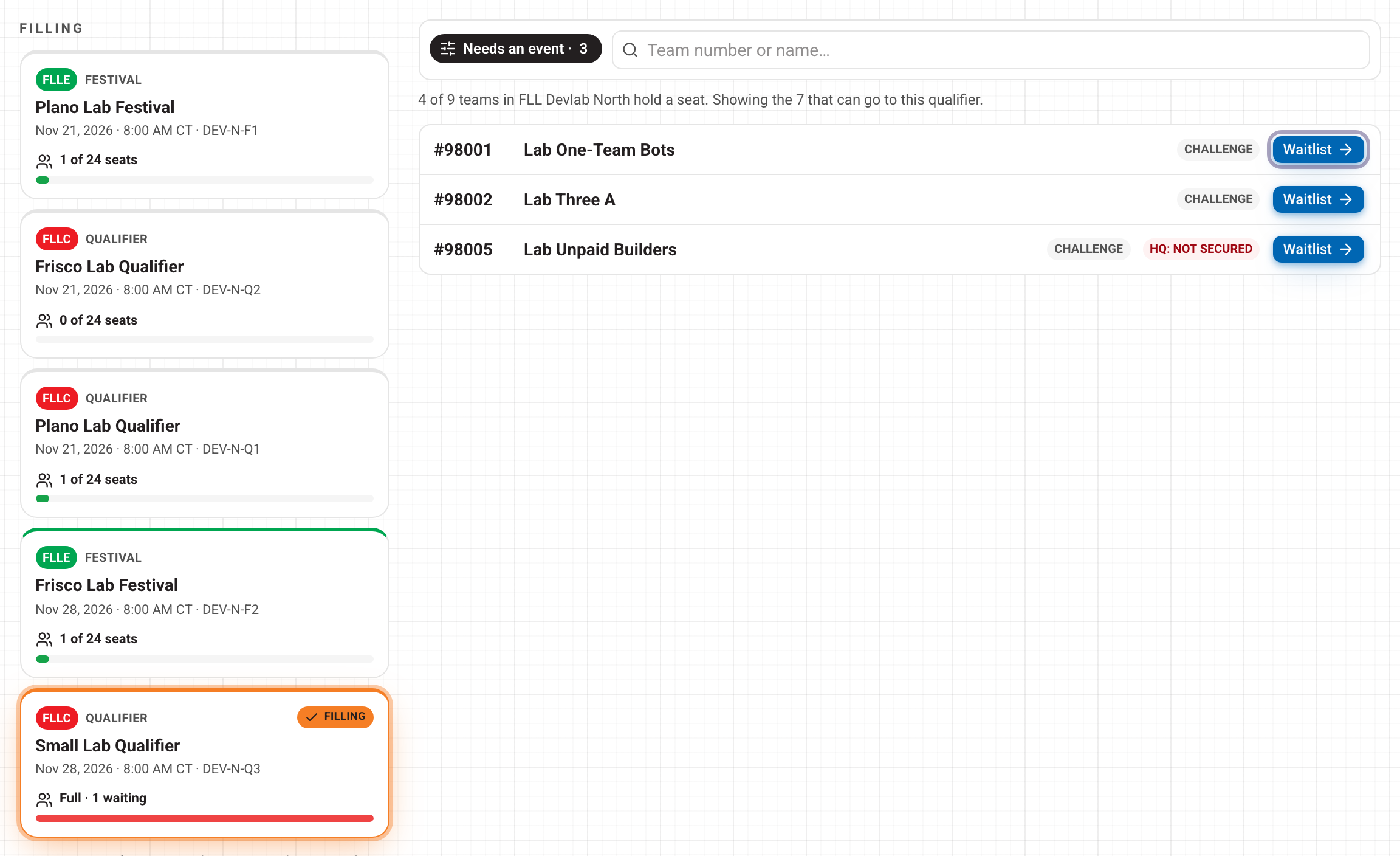
- Under Filling, press the event. It glows orange and says Filling. Each card shows how many seats are taken.
- Work down the list on the right. Press Place beside a team.
- A box asks you to confirm: "You are placing the team in this event. The coach will be notified by email." Press Confirm.
- The seat count updates, and you can carry on with the next team.
Placing from here skips the event's selection window, the region rules and any reserved seats, so you can fill an event before it opens to coaches. You can fill up to the event's full capacity.
Email: when email is on, the coach gets an email saying their team has been placed. While the site is in testing, email is off: nobody is emailed, and nothing is saved to send later.
Choose which teams you see
Press the black filter button above the list to switch views. Each one shows a count.
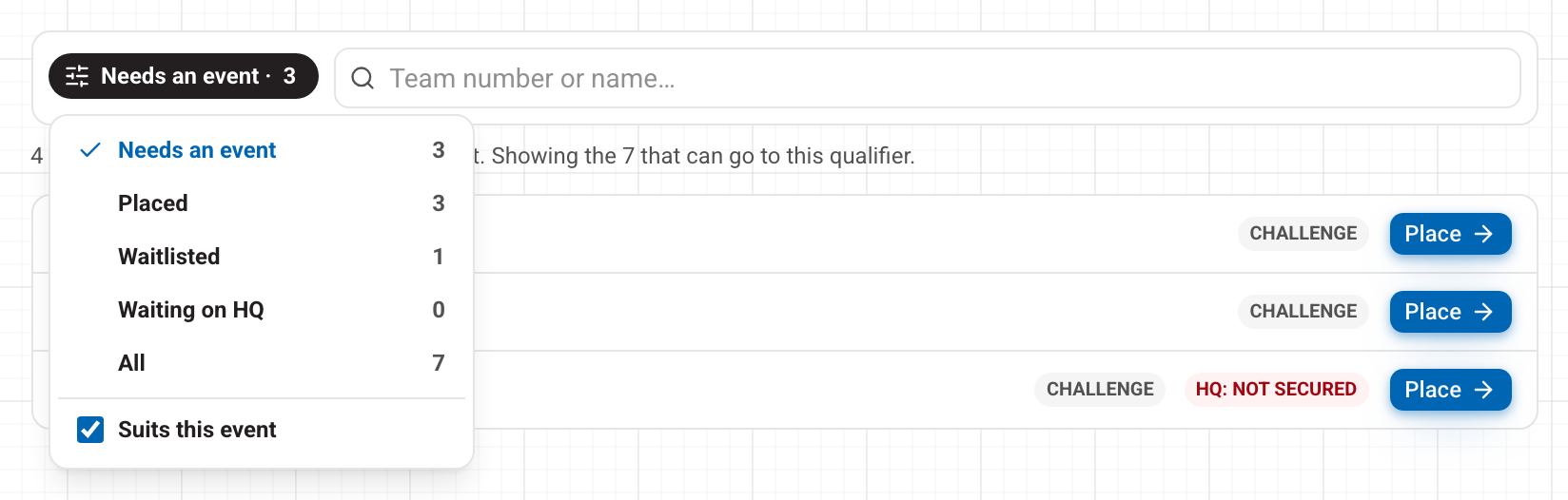
- Needs an event: teams that can be placed and hold no seat. This is where you start.
- Placed: teams that already hold a seat somewhere.
- Waitlisted: teams waiting at an event, with no seat anywhere.
- Waiting on HQ: teams that cannot be placed yet because they are not Secured with FIRST HQ.
- All: everyone.
Suits this event is on by default. It hides teams whose division does not normally go to this kind of event. Explore teams go to festivals, and Challenge and Future Edition teams go to competitions. Untick it to place one anyway. The button then shows a warning triangle.
Type a team number or name in the search box to find one team.
What the button says
The button changes to tell you what pressing it will do.
- Place: the team gets a seat at this event.
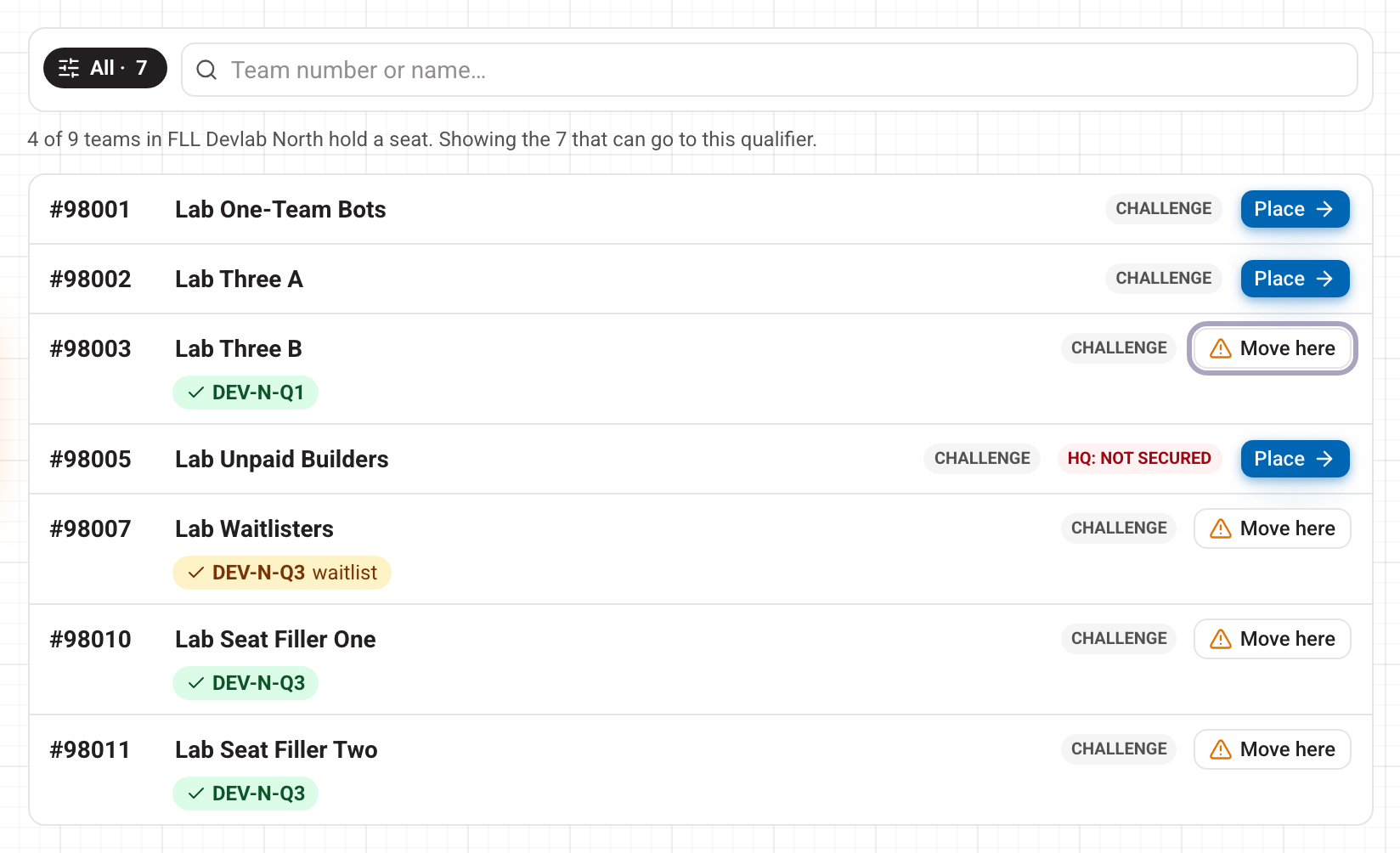
- Move here: the team already holds a competition seat somewhere else. A Challenge or Future Edition team can hold one competition event a season, so this moves it. The event it is leaving is shown under the team name.
- Waitlist: the event is full, so the team joins its waitlist.
- Here: the team is already at this event.
Explore teams can go to more than one festival, so for them Place adds another festival rather than moving them.
Teams you cannot place
When the HQ Secured rule is on, a team that is not Secured with FIRST HQ shows a red Not Secured lock instead of a button. Under it, HQ still needs: lists what HQ is waiting for. Nobody can place these teams, admins included. They clear once HQ marks them Secured and the roster is next imported.
When that rule is switched off, these teams show a red HQ: not Secured tag but can still be placed. The tag is there so you know the HQ fee is not paid yet.
Take a team off an event
Switch the filter to Placed and pick the event. Press the undo arrow beside Here, then Remove, or Keep to change your mind.
On the event's own page you can also remove a team. Press the × on the team's card, type a reason and press Remove.
A seat freed this way is not handed to the next team on the waitlist. It stays open until you give it out.
Give a waitlisted team a seat
Open the event (from Events, or a card on your Overview). Under Waitlist, press Give a seat on the team you choose, then confirm. The coach is emailed when email is on. You can also add any team from Add a team further down the same page.
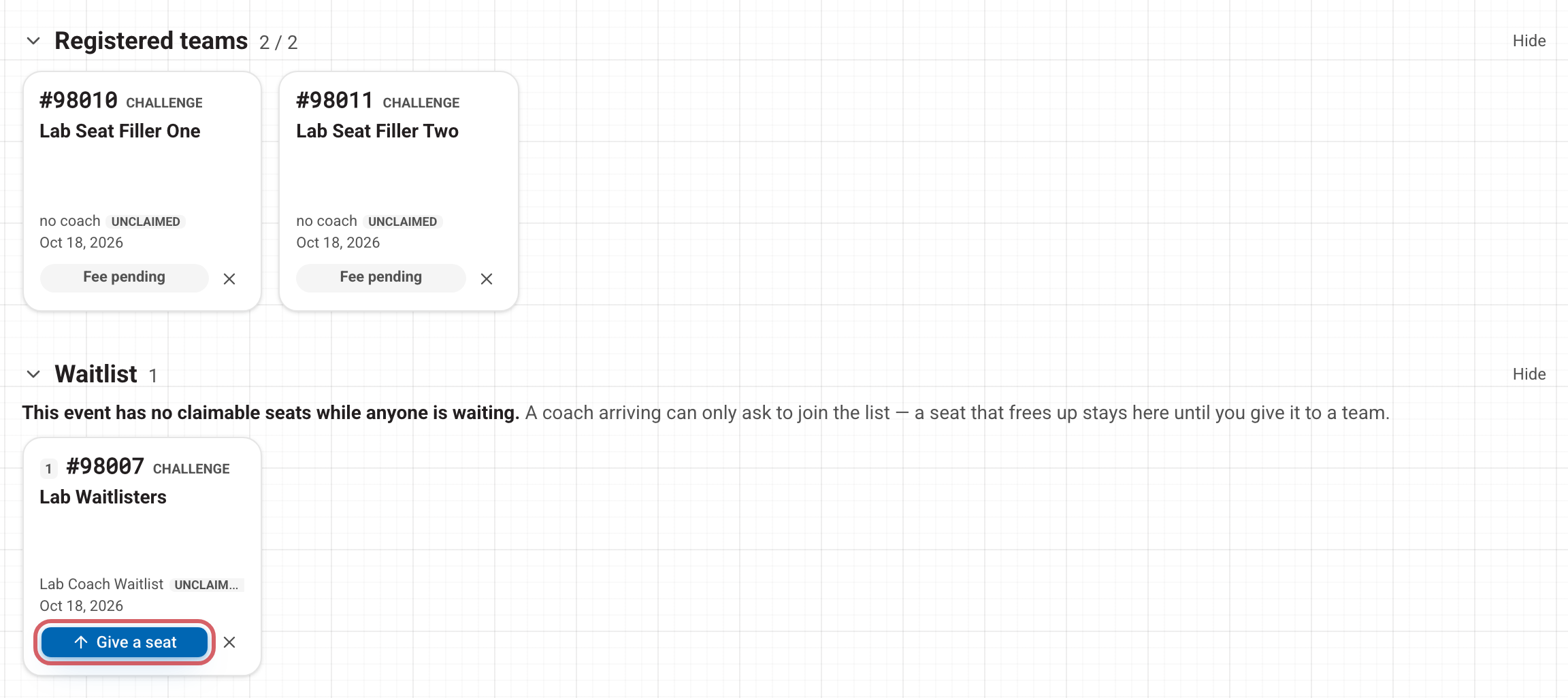
While anyone is waiting, coaches cannot take a seat that comes free. That way you decide who gets it, not whoever happens to refresh the page first.
When your region is locked
- Soft lock: coaches cannot select events in your region. You and FIRST Texas staff place every team from this board. A blue note at the top of the board says so.
- Hard lock: nobody can place teams in the region, you included, until an administrator unlocks it. A red note at the top of the board says so. Removing a team still works.
Only administrators turn these locks on and off.
Questions? Open Help in the account menu at the top right.