

Your RPA dashboard at /rpa is where you run your region. It only ever shows the regions you are assigned to, named in the pills under the greeting.
Find your way around
The cards at the top are the dashboard's menu. The one you are on is filled in. A red number on a card means something is waiting for you.
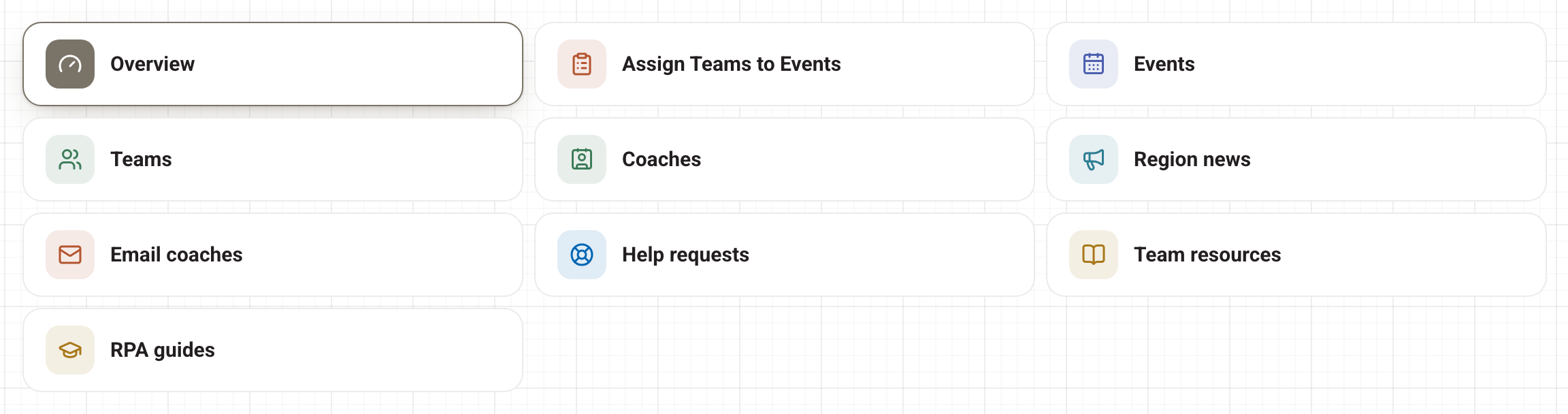
- Overview: the counts, your fee follow-up list and your next events.
- Assign Teams to Events: place teams at events, one event at a time. See Placing teams at events.
- Events: every event in your regions, plus events coaches have suggested. A red number here is suggestions waiting for your answer. See Creating and editing events in your region.
- Teams: every team in your regions, with filters for event, fee and HQ status.
- Coaches: the coaches of those teams and how many teams each one has.
- Region news: posts that show on your coaches' dashboards. See Posting region news.
- Email coaches: email a whole region, teams you pick, or the coaches at one event. Each send tells you how many coaches it will reach and asks you to confirm.
- Help requests: questions from your coaches. A red number is open requests. See Help requests from your coaches.
- Team resources: links you publish to your coaches' dashboards.
- RPA guides: the handbook for running a region, written for you rather than the public.
The four counters

- Needs an event: teams that are HQ Secured but hold no seat yet. This is your work queue.
- Waiting on HQ: teams with no seat that are not yet Secured with FIRST HQ. This is not your fault to fix. HQ updates the roster we import, so these sort themselves out as teams finish HQ registration.
- On a waitlist: teams waiting for a seat.
- Teams in your regions: everything you look after.
The counts cover your whole region, not just one page. Press a counter to see the teams behind it.
Your next events
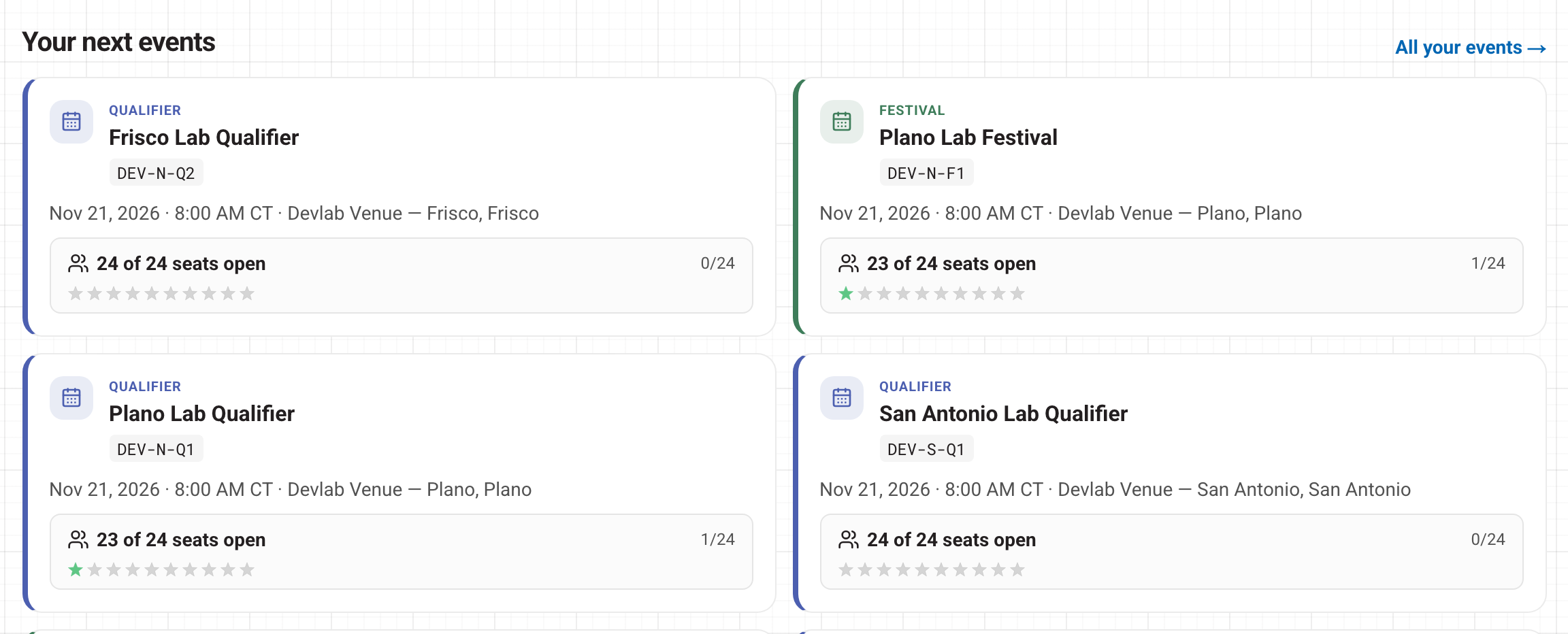
Below the counters is Fee follow-up (see The fee follow-up list), then your next events. Each card shows the date, the venue and how many seats are open. Press a card to open that event. All your events opens the full list.
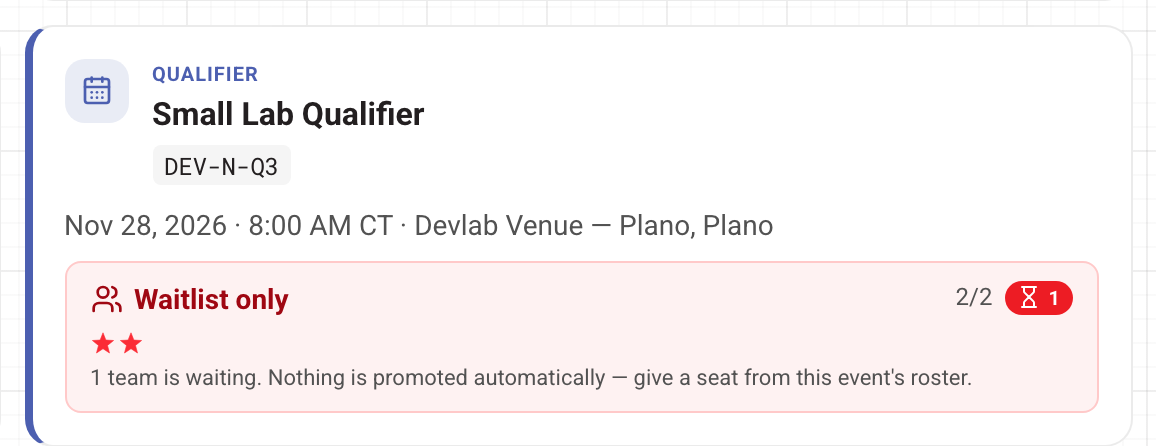
When teams are waiting, the card says Waitlist only. Nothing moves off a waitlist by itself. You give the seat yourself from the event's page.
Stuck? Open Help in the account menu at the top right.