

You can create and edit events in the regions you run, with no need to go through an administrator. Open Events on your dashboard and press Create an event, or Edit beside an existing one.
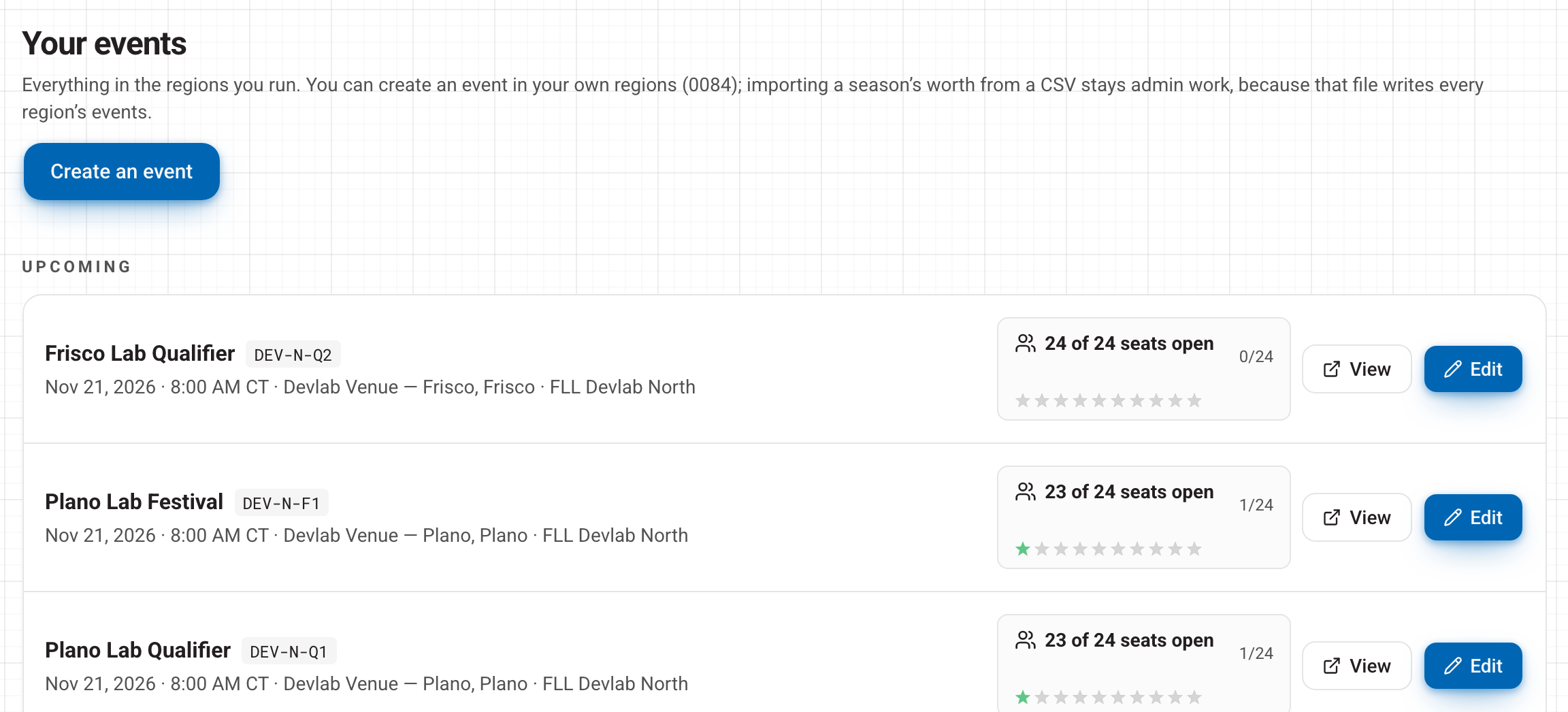
Importing a whole season of events from a spreadsheet is still done by FIRST Texas staff.
Basics
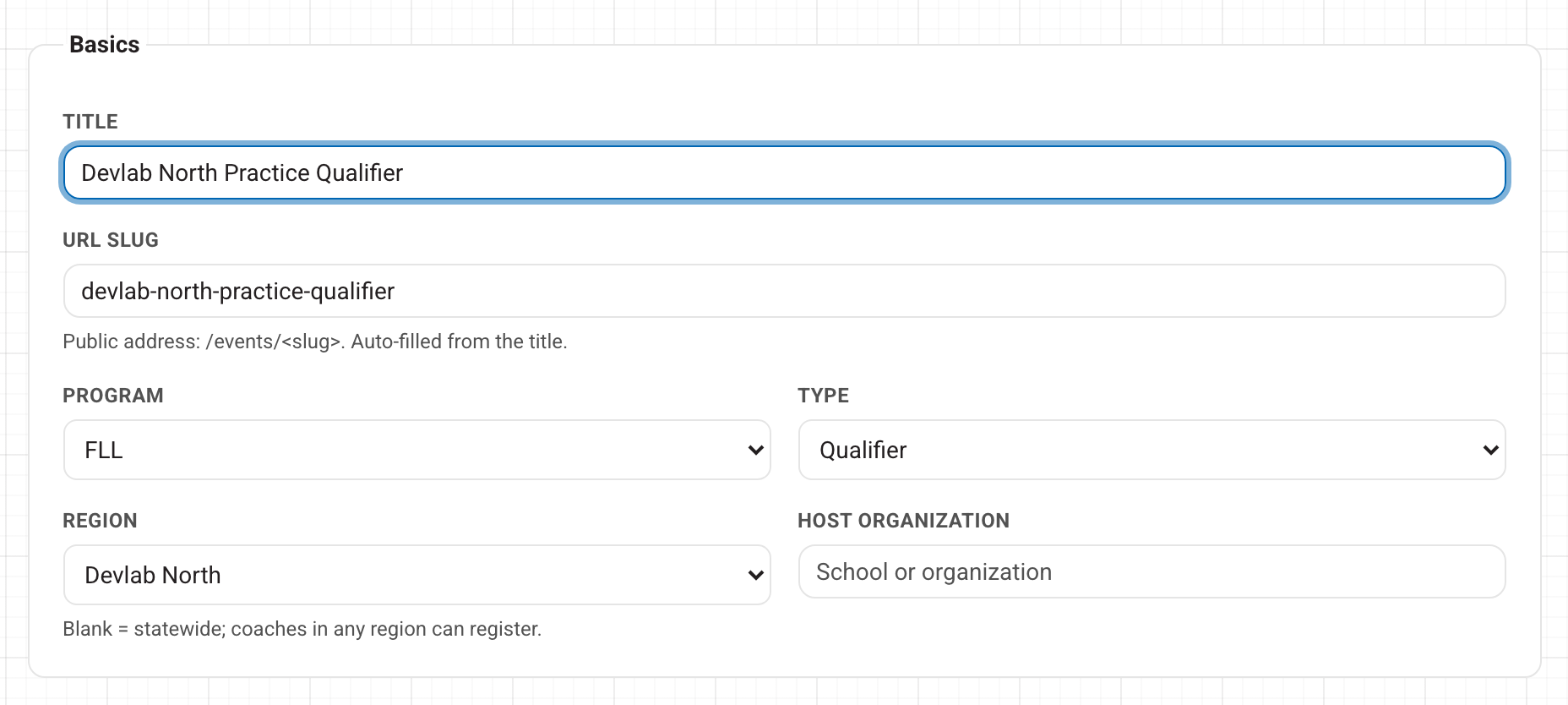
- Title: the name coaches and families see.
- URL slug: the event's web address. It fills itself in from the title.
- Program and Type: for example FLL Challenge and Qualifier. Coaches only select qualifiers and festivals themselves. Any other type, such as a championship, is placed by you.
- Region: one of your regions. Coaches can only select events in their own region.
- Host organization: the school or group hosting.
The event code (for example TXFLL-C-Q1) is created for you when you save, from the program, region and type.
When & where
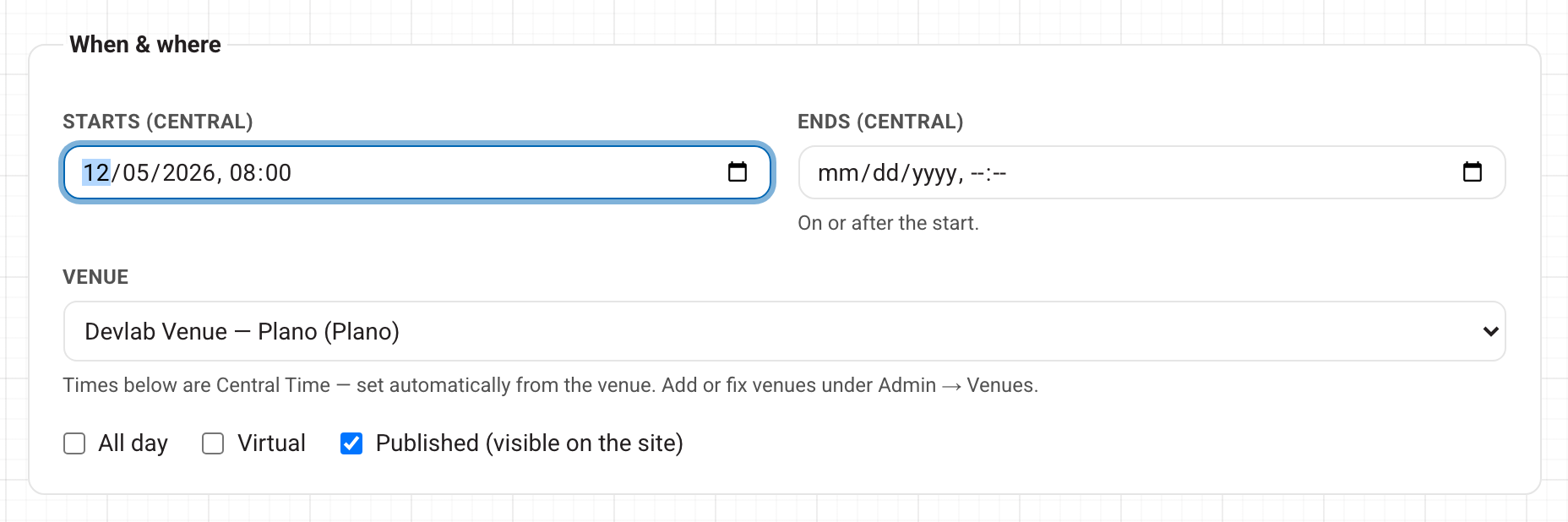
- Pick the Venue first. Times are in the venue's own time zone, and the labels say which one: Central for most of Texas, Mountain for El Paso.
- Starts is required. Ends must be on or after the start. The form will not let you pick an earlier end, and if one slips through, the save tells you the end is before the start.
- Tick All day if there are no set times, or Virtual for an online event.
- Published puts the event on the public calendar. Untick it to keep working on it as a draft.
Event selection (team sign-up)
This section controls how teams get a seat. Only you and FIRST Texas staff can change it.
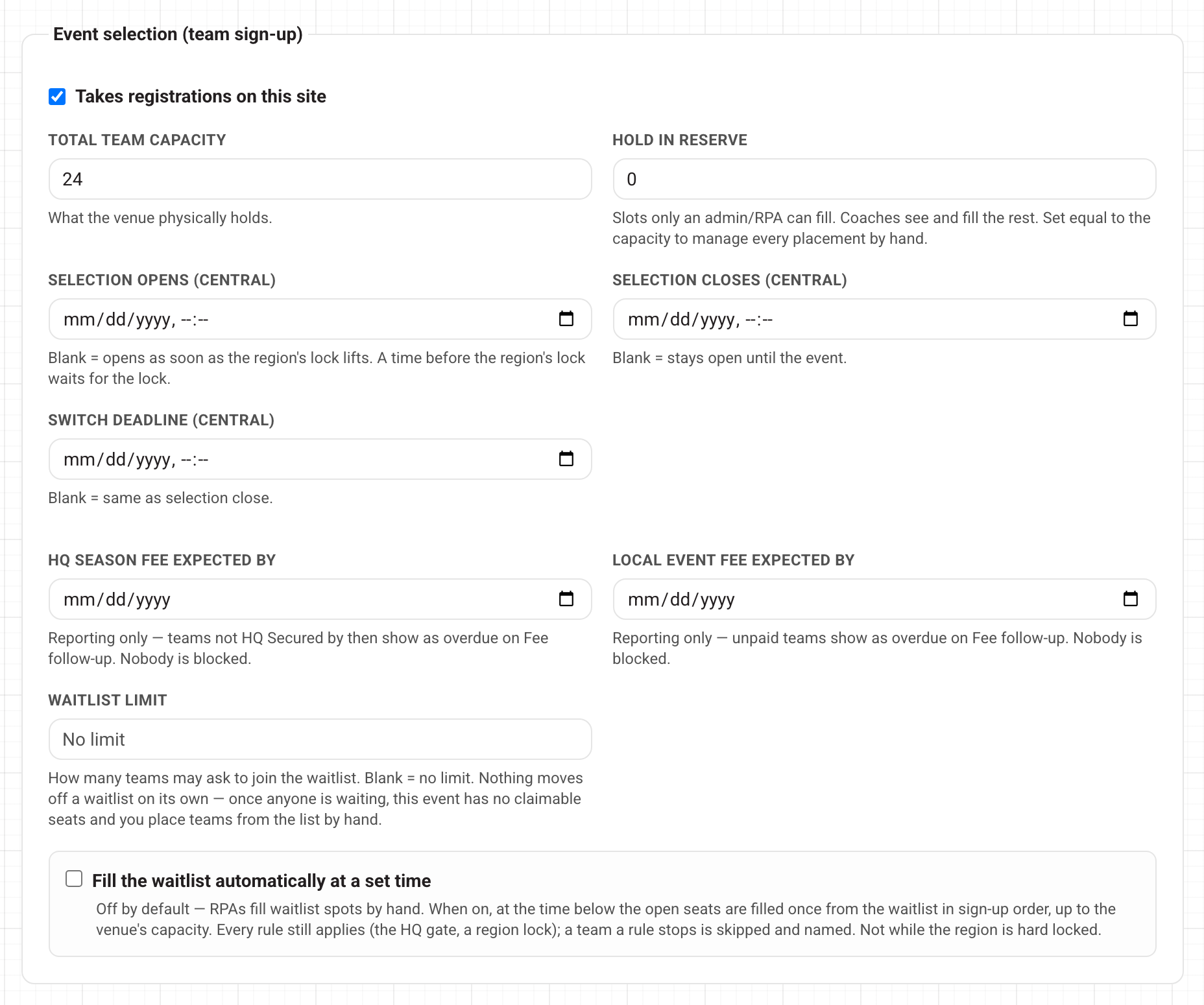
- Takes registrations on this site: tick it for an event teams sign up for here. Without it, the event is just a listing on the calendar.
- Total team capacity: what the venue holds, for example 24.
- Hold in reserve: seats that only you or staff can fill. Coaches see and fill the rest. Set it equal to the capacity to place every team yourself.
- Selection opens: when coaches can start choosing this event. Leave it blank to open when your region's selection date arrives. An earlier time still waits for the region's date. If your region's selection date is still to come, a blue note tells you when it is.
- Selection closes: leave it blank to stay open until the event.
- Switch deadline: the last moment a coach can move to another event. Leave it blank to match selection close.
- HQ season fee expected by and Local event fee expected by: these only affect the fee follow-up list, where teams that have not paid by then show as overdue. Nobody is blocked or removed.
- Waitlist limit: how many teams can ask to join the waitlist. Leave it blank for no limit.
- Fill the waitlist automatically at a set time: off by default. If you tick it, the open seats are filled once, at the time you choose, from the waitlist in sign-up order. Otherwise you fill seats by hand.
Only administrators can set an event to ignore the region's selection date.
Save
Press Create event (or Save changes on an existing event). Cancel leaves without saving, and asks first if you have typed anything.
What an event director can change
Event directors run the day itself. You add them under Event directors on the event's page. They can edit the event details, documents, sponsors and updates, and message the coaches. They cannot change capacity, the reserve, the selection window, the region, the program or the type, and they cannot place or remove teams. In their copy of the form, the Event selection section just says that staff or the region's RPA set it.
Next: Placing teams at events. Questions? Open Help in the account menu at the top right.