
You don't need to add or claim your teams. Every team whose FIRST HQ registration lists your email address shows on your dashboard at /coach, each with its own card.
Which teams show up
A team appears when your address is on its HQ registration as Lead Coach 1, Lead Coach 2, team admin, or an alternate contact. We import the HQ roster every Wednesday and Friday, and your dashboard checks it each time you open the page.
If a team is missing, check which email address HQ has for it. Then use Tell us which one on the dashboard, and we will sort it out.
How the dashboard is laid out
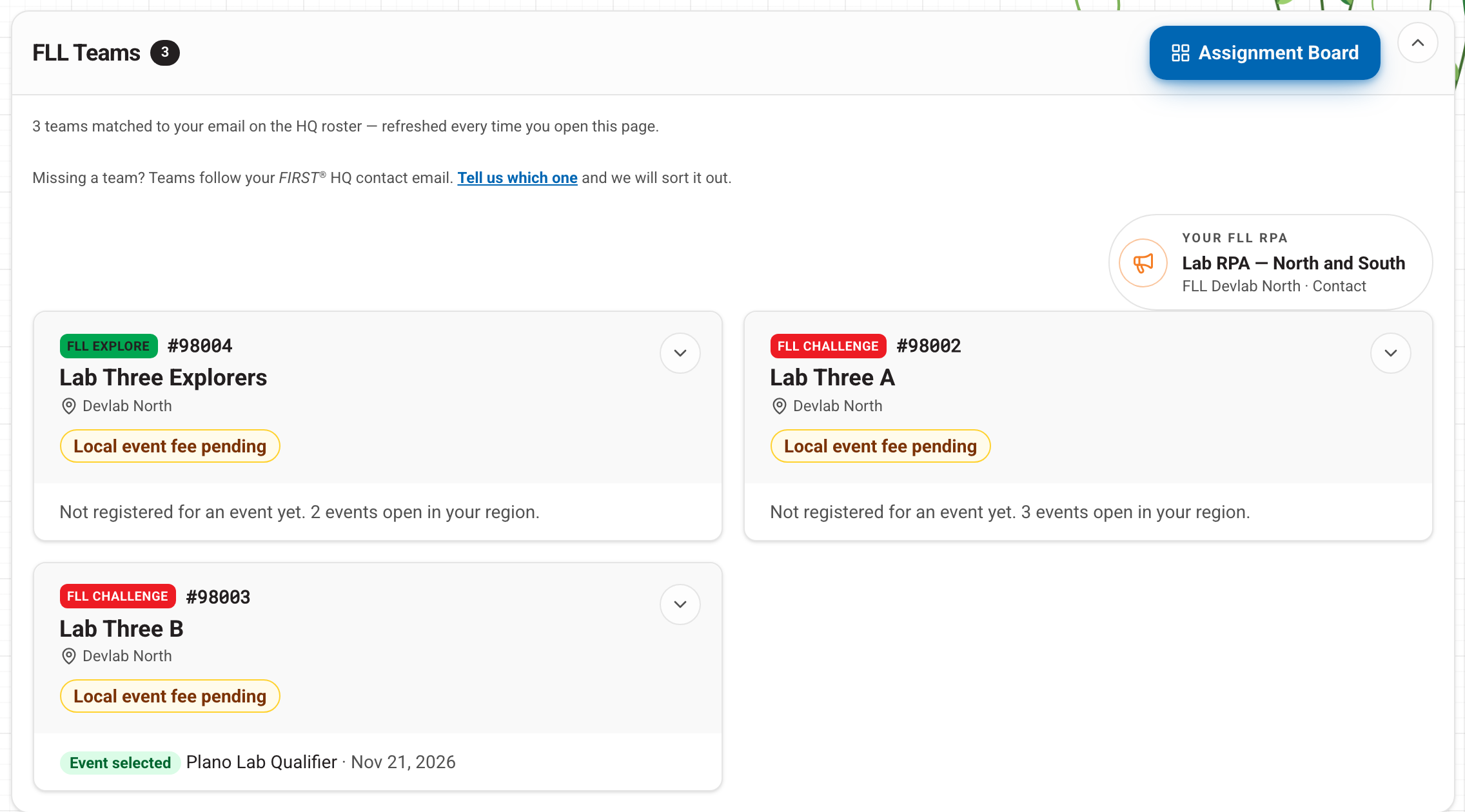
- Teams are grouped by program, for example FLL Teams.
- With several teams, each card starts closed. The closed card still shows the team's status pills and its event. Press a card to open it and act for that team.
- If your teams are in more than one region, each region gets its own heading and its own RPA card, so you can see who to contact for which team.
- FIRST Tech Challenge and FIRST Robotics Competition teams show in their own section. Those programs don't select events on this site, so their cards only list events.
Placing several teams at once
Each card has its own Choose an event button. To work on all your teams together, press Assignment Board and drag each team onto an event.
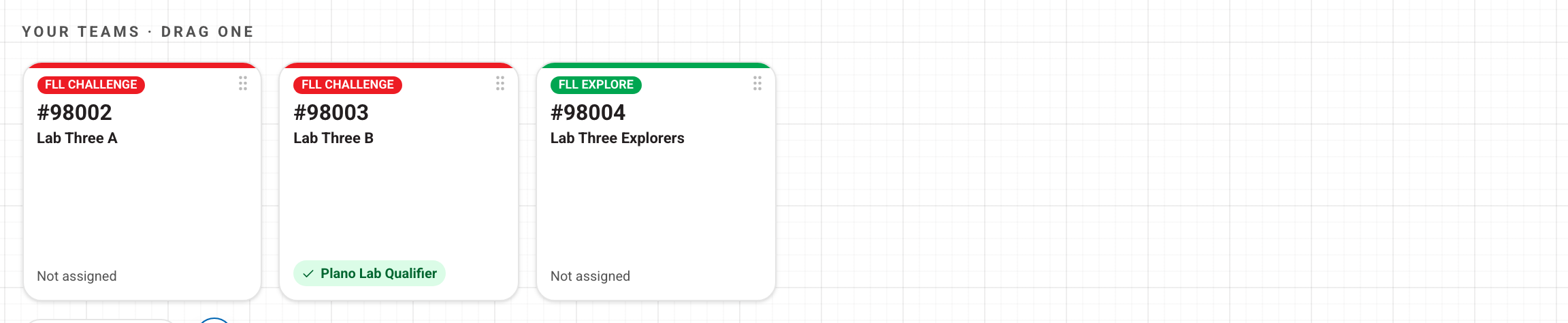
Each team follows its own rules. A Challenge team holds one event at a time. An Explore team can attend several festivals, each with its own fee. See Fees and "Event ready".
Co-coaches and team admins
Everyone listed as a contact on a team's HQ registration sees that team when they sign in, and any of them can select, switch or withdraw for it. The changes are shared, so agree with your co-coach who handles event selection.
Need a hand? Open Help in the account menu, or see Getting help.